
Customization for BOGO offer tables
An offer table serves as a way to inform customers about the requirements to trigger the promotion and provides brief details about the rewards they will receive.

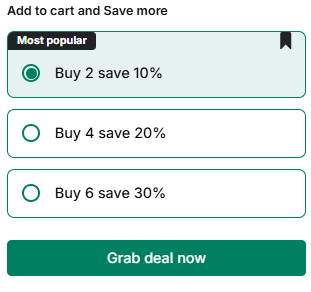
In this article, I'll show you how to set up offer tables on products that have BOGO Deal and Volume Discount promotions with our app BOGO+.
Setting up BOGO Deal offer table
Step 1: Turning on the offer table
After you've configured everything in your Buy X Get Y campaign, scroll down to the Promotion Display section, and tick Enable then Save
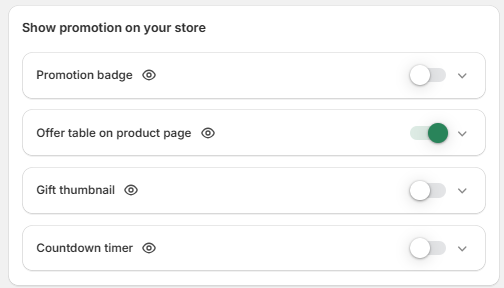
Step 2: Go to the Settings tab then select BXGY offer table customization in the Widgets section.

Step 3: Customize table color
You can customize the color of the table
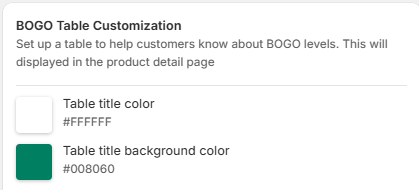
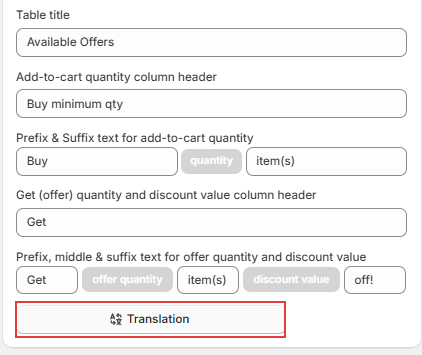
Step 4: Customize the text of the table
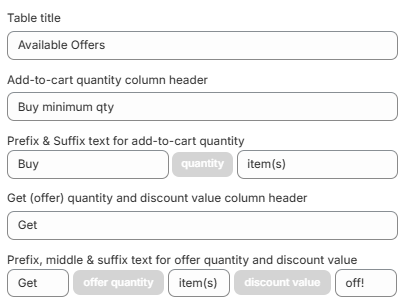
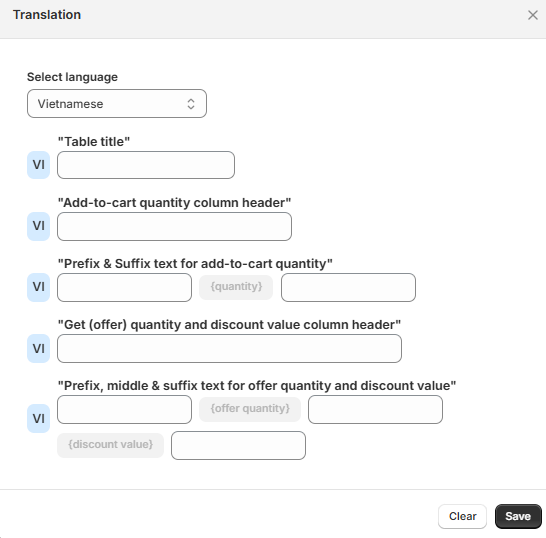
Step 5: Customize the translation of the text in the table. The target language you select should correspond to the language configuration you have set up in your store.
Display on storefront

Setting up Volume Discount offer table
Step 1: Turning on the offer table
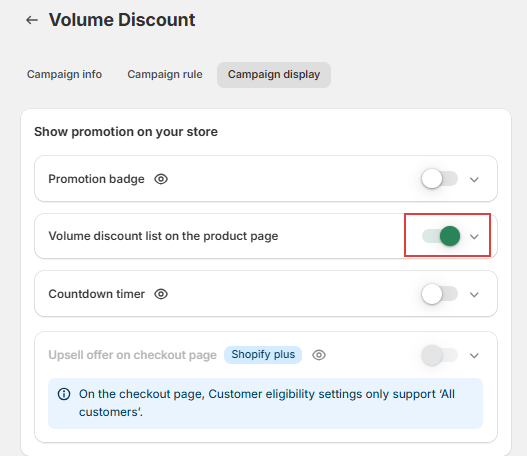
After you've configured everything in your Volume Discount campaign, scroll down to the Promotion Display section, and tick the "Volume discount list on the product page" to Enable then Save
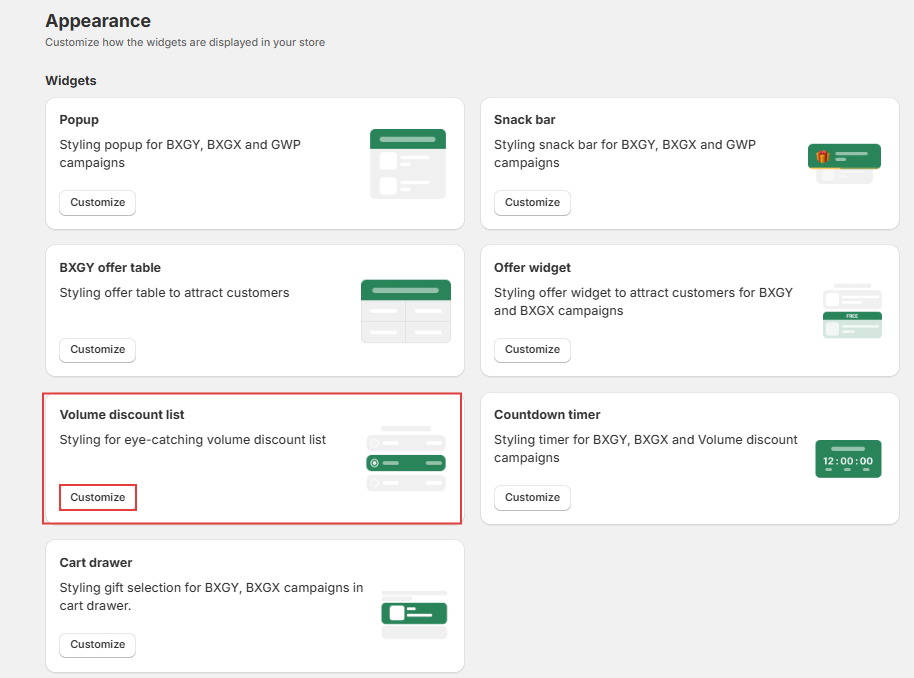
Step 2: Go to the Settings tab then select Volume discount list customization in the Widgets section.
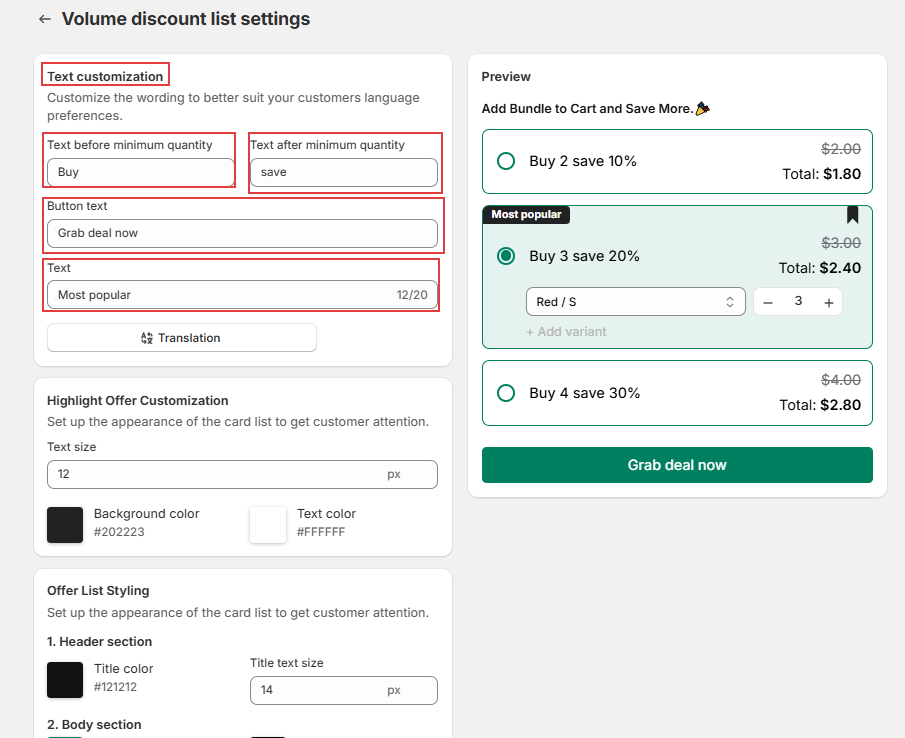
Step 3: Customize the table text
You can customize the text in the table
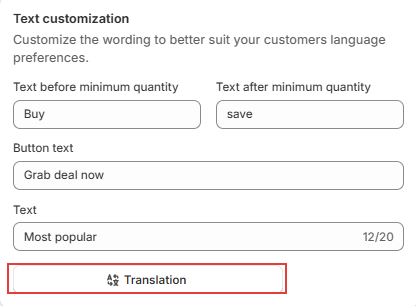
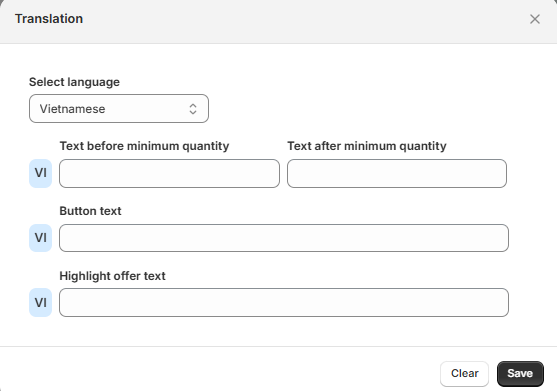
Step 4: Customize the translation of the text in the table. The target language you select should correspond to the language configuration you have set up in your store.
Step 5: Customize the highlight offer for most popular selection
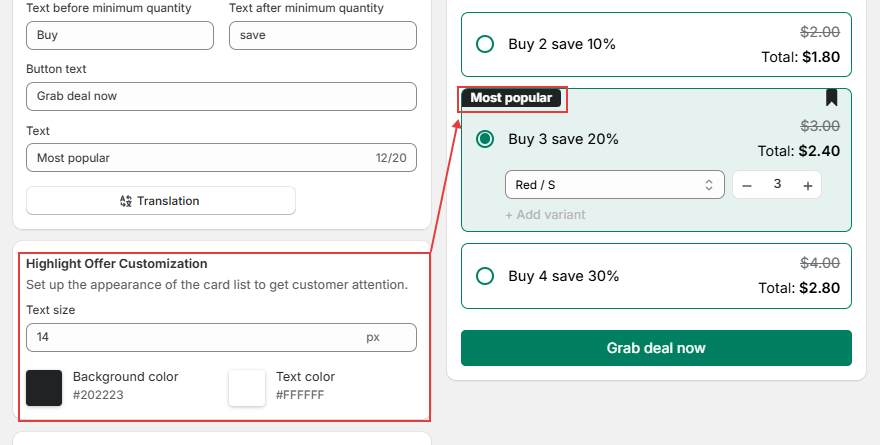
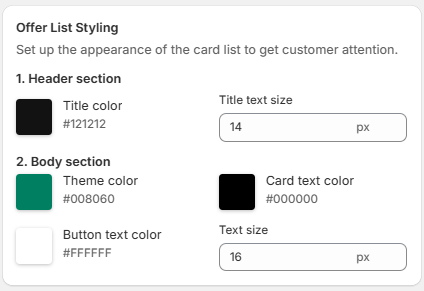
Step 6: Customize the offer list color/text size
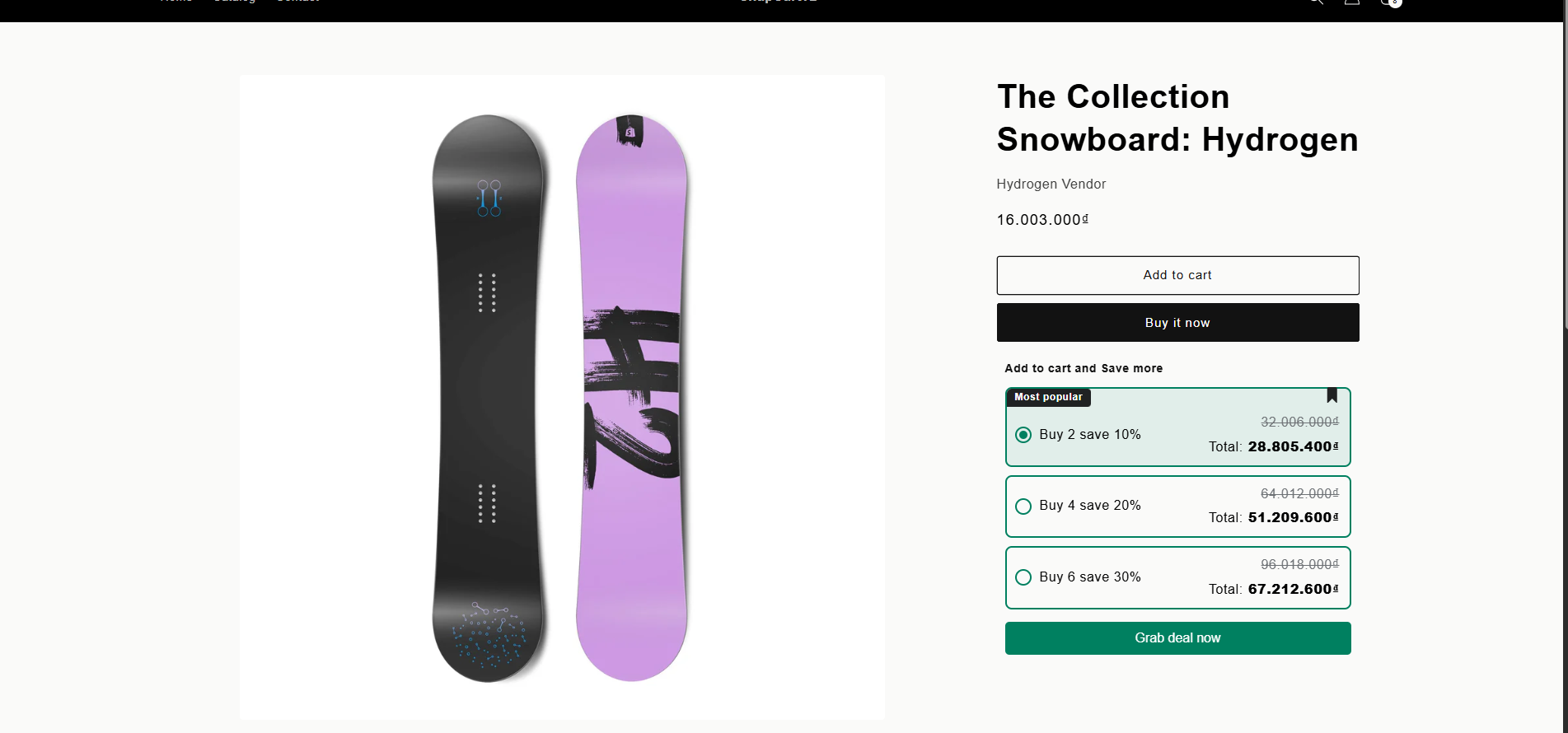
Display on storefront
Need more help?
If you encounter any issues or have questions, feel free to reach out to our support team via [email protected] or via our live chat - we're happy to help!