
Snap Cart Drawer: How to enable
How to Enable Snap Cart Drawer
Before customers can see the cart drawer on your storefront, you need to enable the Snap Cart Drawer app embed in your Shopify theme.
Step 1: Open the Theme Editor
From the Snap Cart Drawer dashboard, click Enable Snap Cart Drawer.
Note: Even if the app status shows ON, the cart drawer will not appear on your storefront until the app embed is enabled.

Step 2: Enable the App Embed
You will be redirected to Shopify's Theme Editor.
- Open the App embeds section.
- Find Snap Cart Drawer.
- Turn on the toggle beside the app.

Step 3: Save Your Changes
After enabling the app embed, click Save in the top-right corner of the Theme Editor.
Once saved, Snap Cart Drawer will be active on your storefront.
Verify the Installation
To confirm the app is enabled:
- Open your online store.
- Add a product to the cart.
- Open the cart drawer.
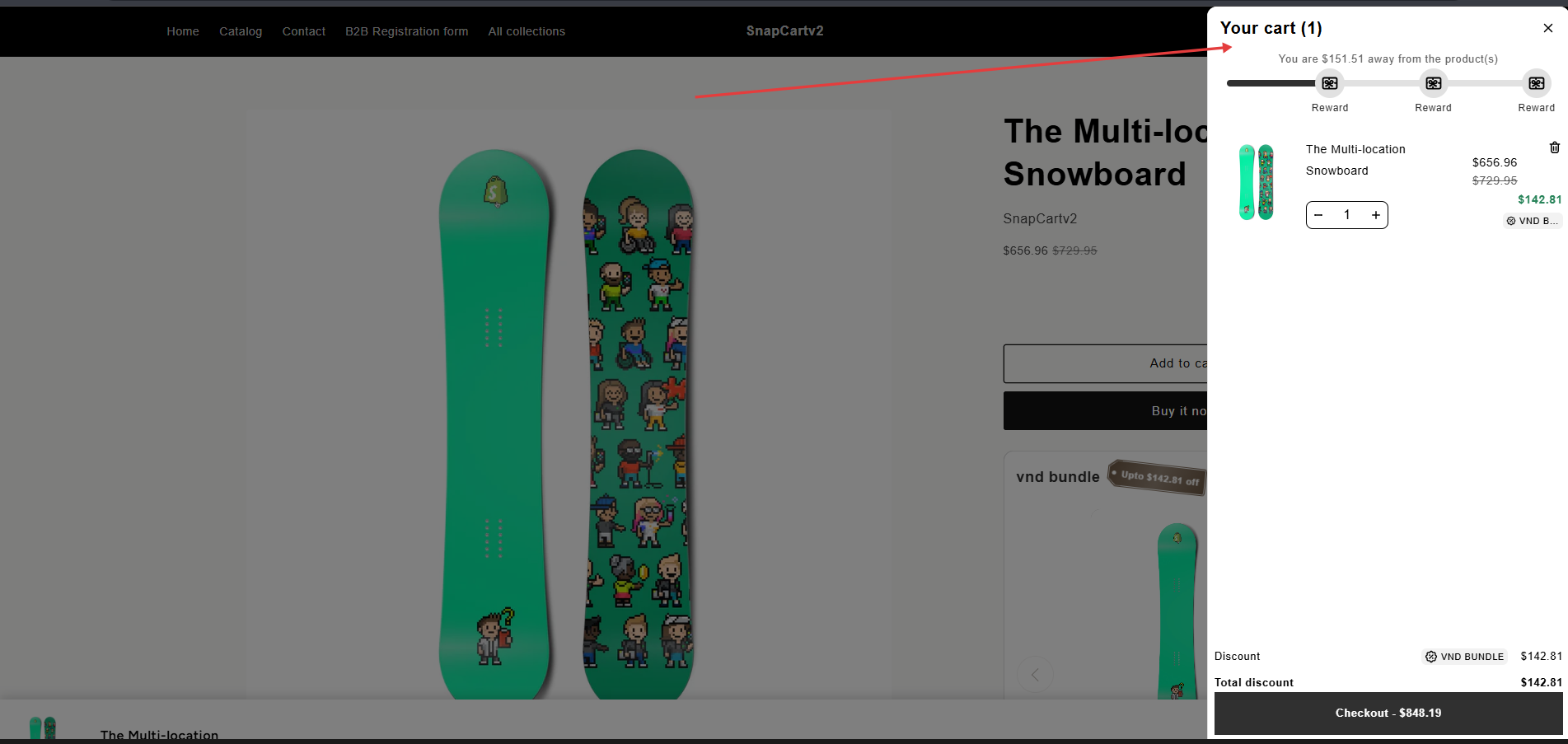
If the setup is successful, the Snap Cart Drawer will appear instead of the default cart page.
Troubleshooting
The cart drawer does not appear after enabling the app embed
Please check the following:
- The app embed is enabled and saved.
- The cart is active in Snap Cart Drawer.
- Your theme supports app embeds.
- There are no other cart drawer apps conflicting with Snap Cart Drawer.
If the issue persists, please contact our support team for assistance.
Need More Help?
If you experience any issues or have questions, please don't hesitate to contact our support team at [email protected] or through our live chat - we're here to assist you!