
Customization for Countdown Timer
Overview
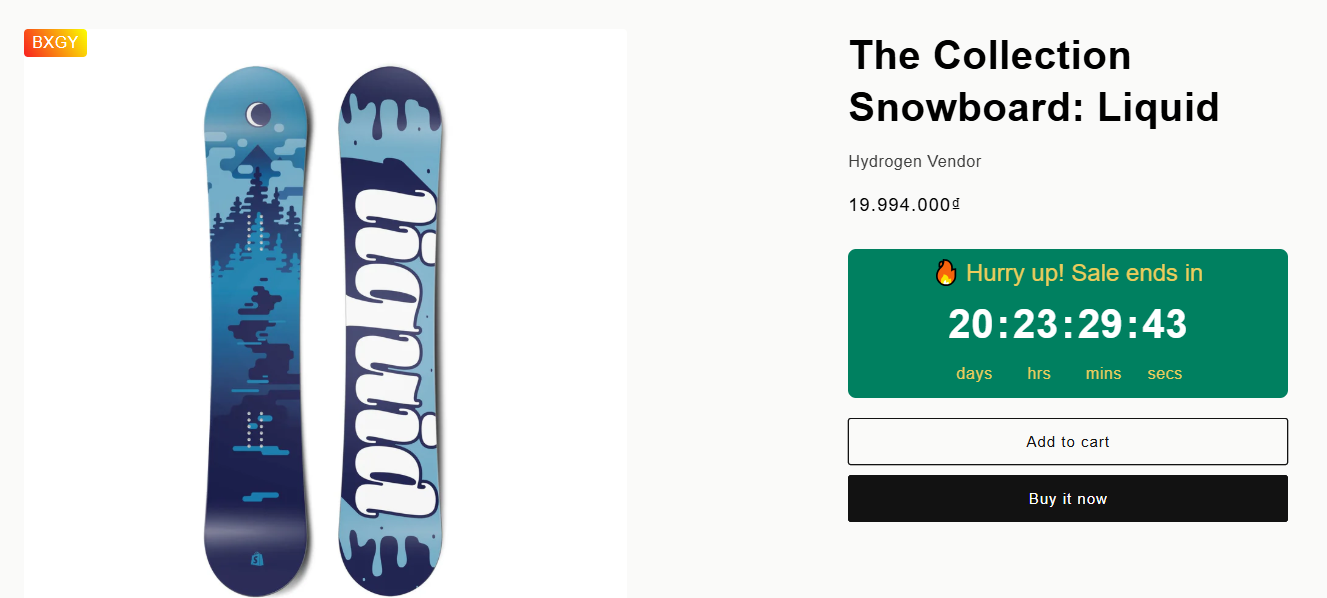
The Countdown Timer displays a countdown on the product page to create urgency for time-limited promotions.
The timer follows the campaign schedule configured in Campaign Info. When the campaign starts or ends, the countdown updates automatically.
Customize the Countdown Timer
Go to: Customization → Countdown Timer
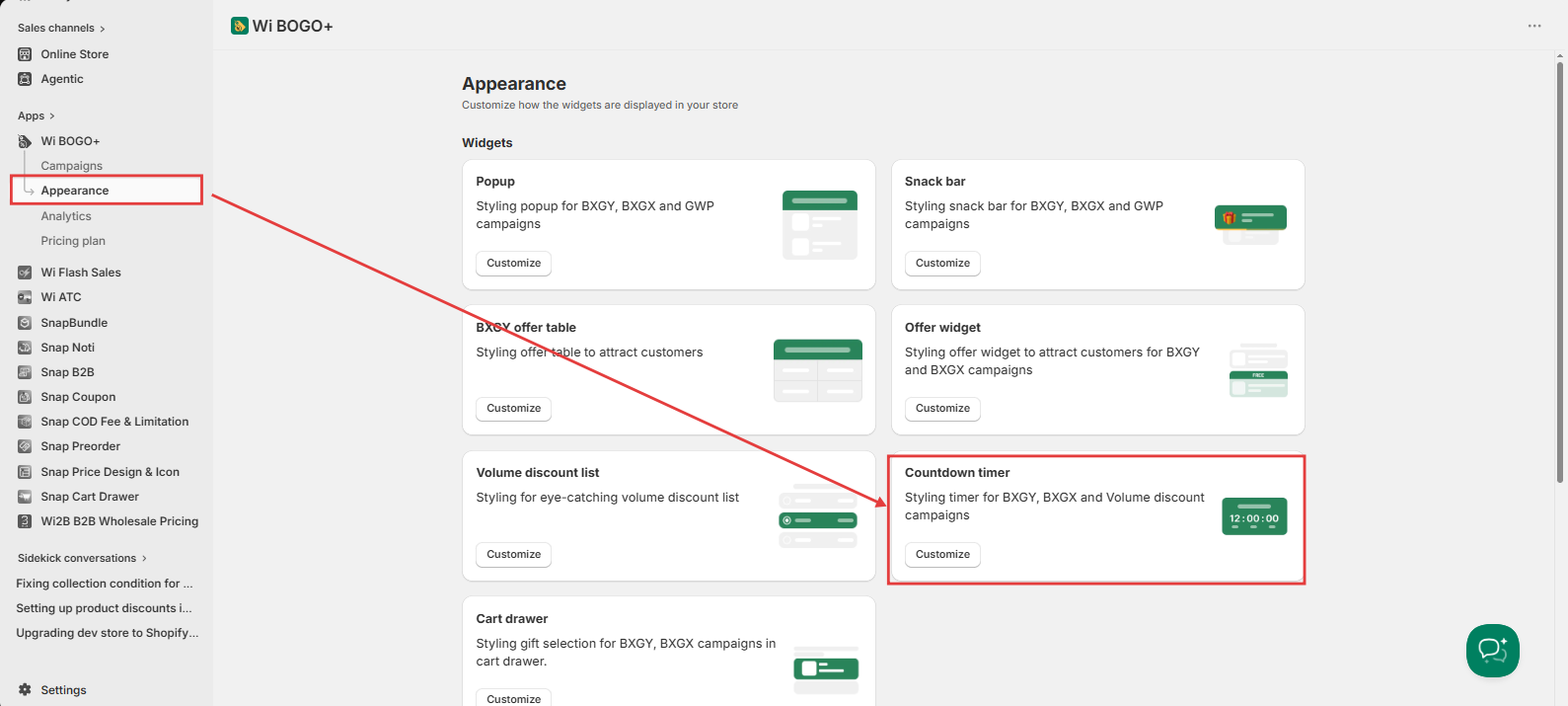
Step 1. Customize the text
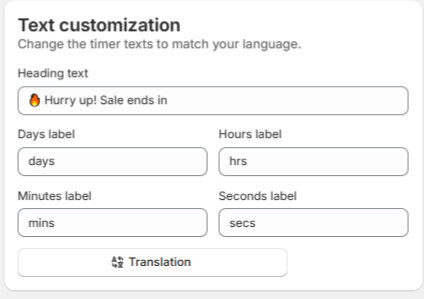
You can edit:
- Heading text – The message displayed above the timer.
- Days, Hours, Minutes, Seconds labels – Customize the time unit labels.
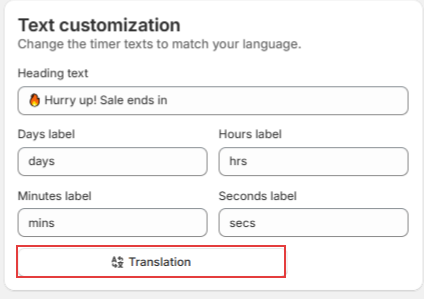
- Translation – Add translations for multilingual storefronts.
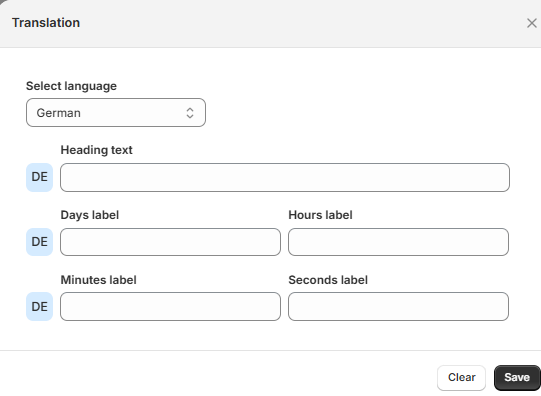
Step 2. Customize the translation of the text in the table. The target language you select should correspond to the language configuration you have set up in your store.
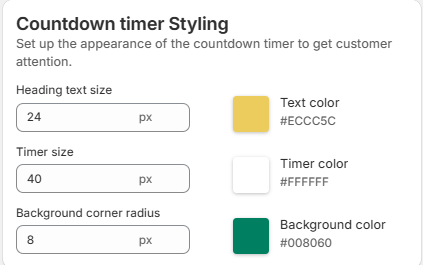
Step 3. Customize the appearance
You can customize:
- Heading text size
- Timer size
- Background corner radius
- Heading text color
- Timer color
- Background color
The preview panel updates automatically as you make changes.
Step 4. Save your changes
Click Save to apply the new design to your storefront.
Display on storefront
Need more help?
If you encounter any issues or have questions, feel free to reach out to our support team via [email protected] or via our live chat - we're happy to help!