
Launch your first campaign
Once BOGO+ has been enabled, you're ready to create your first promotion.
The app currently supports five campaign types, each designed for different promotional goals. Simply choose the campaign that best fits your needs and complete its setup.
Step 1. Explore available campaign types
From the dashboard, click Explore all campaign types.

Step 2. Choose a campaign type
You'll see all available campaign types.
Click Create on the campaign you'd like to use.

Available campaign types include:
- BOGO Deal – Buy X Get X or Buy X Get Y promotions.
- Gift with Cart Value – Offer a gift or discount when customers reach a purchase requirement (single reward tier).
- Goal Order – Reward customers with multiple spending milestones.
- Volume Discount – Offer tiered discounts based on the quantity purchased.
- Discount by Item Price – Discount the cheapest or highest-priced eligible item.
Refer to the campaign guides below for detailed setup instructions:
- Create a BOGO Deal
- Create a Gift with Cart Value campaign
- Create a Goal Order campaign
- Create a Volume Discount campaign
- Create a Discount by Item Price campaign
Step 3. Configure your campaign
Complete the campaign setup by configuring:
- Campaign rules
- Eligible products or collections
- Rewards or discounts
- Display settings
- Advanced settings (if needed)
The required settings depend on the selected campaign type.
See the corresponding campaign guide for detailed instructions.
Step 4. Activate your campaign
When your campaign setup is complete:
- Turn Campaign status to Active.
- Click Save.
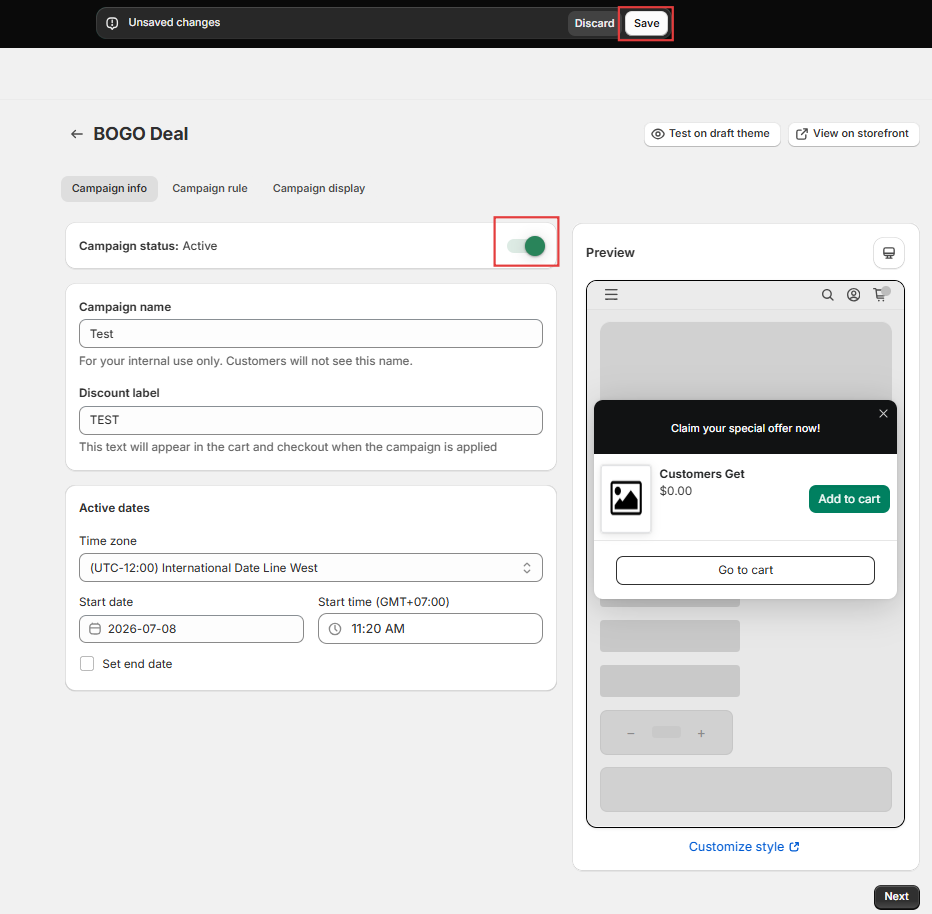
Your campaign is now live and will begin running when customers meet the campaign conditions.
Before you publish
Before launching your promotion, make sure:
- BOGO+ App Embed is enabled.
- The campaign status is Active.
- Eligible products or collections are available.
- Campaign conditions and rewards are configured correctly.
- The campaign has been saved.
FAQs
Can I create multiple campaigns?
Yes. You can create and manage multiple campaigns at the same time. Each campaign is configured independently.
Is my campaign live immediately after clicking Create?
No. Clicking Create only starts the campaign setup.
Your campaign will only become active after:
- Completing the required configuration.
- Turning Campaign status to Active.
- Clicking Save.
Can I edit my campaign later?
Yes. Campaigns can be edited at any time. After making changes, remember to click Save for the updates to take effect.
Need more help?
If you encounter any issues or have questions, feel free to reach out to our support team via [email protected] or via our live chat - we're happy to help!