
The guide for Setting Up a Volume Discount Campaign
Volume Discount allows you to offer quantity-based discounts to encourage customers to purchase more products. As customers increase the quantity of eligible products in their cart, they automatically qualify for higher discount tiers.
For example:
- Buy 2 → Save 10%
- Buy 4 → Save 20%
- Buy 6 → Save 30%
This type of campaign is ideal for increasing Average Order Value (AOV) and promoting bulk purchases.
Before You Start
Before creating your campaign, make sure:
- You know which products or collections should be eligible for the discount.
- You have planned your quantity tiers and discount values.
- You understand how quantities should be calculated when multiple products are involved.
- Your Shopify theme has the app properly installed and enabled.
Step 1: Create the campaign
Go to: Campaigns → Create campaign → Volume discount

Step 2: Configure Campaign Info
Campaign Status
Enable or disable the campaign using the Campaign Status toggle.

- Active: The campaign is live and available to customers.
- Inactive: The campaign is saved as a draft and won't be displayed on your storefront.
Campaign Name
Enter a campaign name for internal reference.

Example: Summer Volume Discount
This name is only visible within the app and will not be shown to customers.
Discount Label
Enter the label that customers will see when the discount is applied.

Example: Volume Discount
This text will appear in the cart and checkout.
Active Dates
Schedule when the campaign starts and ends.
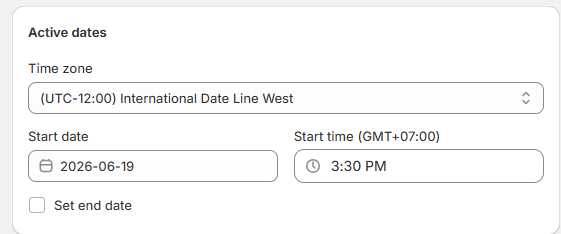
You can configure:
- Time zone
- Start date
- Start time
- End date (optional)
Step 3: Configure Campaign Rules
Customer Buys
Choose which products qualify for the discount.

You can select:
Specific Products:
Apply the discount only to selected products.
Click Browse products and choose the products you want to include.
Specific Collections:
Apply the discount to all products within selected collections.
Click Browse collections and choose the products you want to include.
How Purchases Qualify for the Offer
Choose how product quantities are calculated.

Combine Quantities Across Selected Items
The quantities of all eligible products are combined.
Example:
Eligible products:
- Product A ×2
- Product B ×2
Total quantity = 4 -> The customer qualifies for the Buy 4 discount tier.
Require Quantity from the Same Item
The required quantity must come from a single product.
Example:
- Product A ×2
- Product B ×2
Neither product reaches a quantity of 4, so the customer does not qualify for the Buy 4 tier.
Configure Discount Tiers
Create one or more quantity-based discount tiers.
For each tier, configure:
- Quantity: Minimum quantity required
- Discount Type: Percentage or Fixed Amount
- Discount Value: Discount amount applied
- Highlight: Mark the tier as "Most Popular"
Example:
|
Quantity |
Discount Type |
Value |
|
2 |
Percentage |
10% |
|
4 |
Percentage |
20% |
|
6 |
Percentage |
30% |
Customers automatically receive the highest discount tier they qualify for.
You can click Add new tier to create additional discount levels.
Advanced Settings
Discount Combinations
Choose whether the campaign can be combined with other Shopify discounts.

Available options:
- Product discounts
- Order discounts
- Shipping discounts
Enable only the combinations that fit your promotion strategy.
Discount Usage Limitation
Control how frequently the discount can be used.

Available options:
Limit total number of usages in this campaign
Set a maximum number of times the campaign can be used across all customers.
Limit to one use per customer
Allow each customer to redeem the discount only once.
Customer Eligibility
Choose which customers can access the campaign.

Available options:
- All Customers – Available to all customers.
- Customer Tags – Only customers with selected tags.
- Customer Segments – Only customers in selected Shopify segments.
- Customers on Target Location – Restrict the campaign to specific countries or regions.
- Customers Access Specific Link – Only customers who visit through a designated campaign link.
- Log-in Customers – Only customers who are logged into their accounts.
- Customers Based on Order History – Target customers based on their purchase history.
- B2B Customers (Shopify Plus) – Available only to Shopify Plus B2B customers.
Step 4: Configure Campaign Display
The Campaign Display section controls how the promotion appears on your storefront.
Promotion Badge
Display a badge on eligible products.

Available customization options include:
- Badge type (Text or Image)
- Badge text
- Font size
- Background style
- Shape
- Position
- Colors
Example badge text: VOLUME
Promotion badges help customers quickly identify products that are part of the campaign.
Volume Discount List on Product Page
Display available discount tiers directly on product pages.

This widget shows customers how much they can save by purchasing larger quantities.
Customize:
- Promotion message
- Widget text
- Translations
This is the primary widget used to communicate volume discounts to customers.
Countdown Timer
Add a countdown timer to create urgency and encourage faster purchasing decisions.
Click Edit widget to customize the timer settings.
Step 5: Save and Test Your Campaign
Before activating your campaign, verify the following:
✓ Campaign status is active
✓ Eligible products or collections are configured correctly
✓ Quantity qualification settings are configured correctly
✓ Discount tiers are accurate
✓ Highlight tier is selected correctly
✓ Customer eligibility settings are configured as intended
✓ Storefront widgets appear correctly
✓ Discounts apply when customers reach the required quantities
Example Campaign Setup
Buy More, Save More Promotion
Eligible Products:
- Coffee Mug Collection
Quantity Qualification:
- Combine quantities across selected items
Discount Tiers:
Display Settings:
- Promotion Badge enabled
- Volume Discount List enabled
- Countdown Timer enabled
Result: Customers see the available savings directly on the product page and receive larger discounts as they purchase more items.
Troubleshooting
The discount is not applied
Check that:
- The campaign is Active.
- The customer purchased eligible products or collections.
- The required quantity tier has been reached.
- The campaign is within its active date range.
- The customer meets the eligibility requirements.
The wrong discount tier is applied
Check that:
- Quantity tiers are configured correctly.
- The discount values are correct.
- The customer qualifies for the intended tier.
- The campaign is applying the highest eligible tier as expected.
Customers cannot qualify for the discount
Verify the "How purchases qualify for the offer" setting:
- Combine quantities across selected items counts quantities across all eligible products.
- Require quantity from the same item requires the quantity to come from a single product.
The Volume Discount widget doesn't appear
Check that:
- The campaign is Active.
- The Volume discount list on the product page is enabled.
- The product is included in the campaign.
- The app embed is enabled in your theme.
- You're viewing an eligible product page.
The Promotion Badge doesn't appear
Check that:
- The Promotion Badge widget is enabled.
- The product is included in the campaign.
- The badge position is supported by your theme.
The discount cannot be combined with another discount
Verify the Combinations settings.
Make sure the campaign is allowed to combine with:
- Product discounts
- Order discounts
- Shipping discounts
depending on the discount you want customers to use.
A customer cannot receive the discount
Check that the customer:
- Meets the selected Customer Eligibility requirements.
- Is not excluded by customer tags.
- Has not exceeded any usage limitations configured in the campaign.
The campaign doesn't appear on the checkout page
Check that:
- Your store is on Shopify Plus.
- Upsell offer on checkout page is enabled.
- Customer Eligibility is set to All Customers, as checkout upsell offers don't support other eligibility conditions.
Need More Help?
If you encounter any issues or have questions, feel free to reach out to our support team via [email protected] or via our live chat. We're happy to help!