
The guide for Setting Up a Discount by Item Price Campaign
Discount by Item Price allows merchants to automatically discount products based on their unit price ranking after customers meet purchase requirements.
Unlike traditional quantity discounts, this campaign determines which item receives the discount based on price.
Examples:
Buy 3 items → Get 50% OFF the cheapest item
Spend $100 → Get the most expensive item for free
Buy 5 products → Get $20 OFF the cheapest product
This campaign is useful for encouraging customers to add more products while controlling discount costs.
Before you start
Before creating your campaign, make sure:
- You know which products should qualify
- You decide whether qualification is based on cart value or item quantity
- You decide which products should receive the discount
- You determine how many products can be discounted
Step 1: Create the campaign
Go to: Campaigns → Create campaign → Discount by Item Price
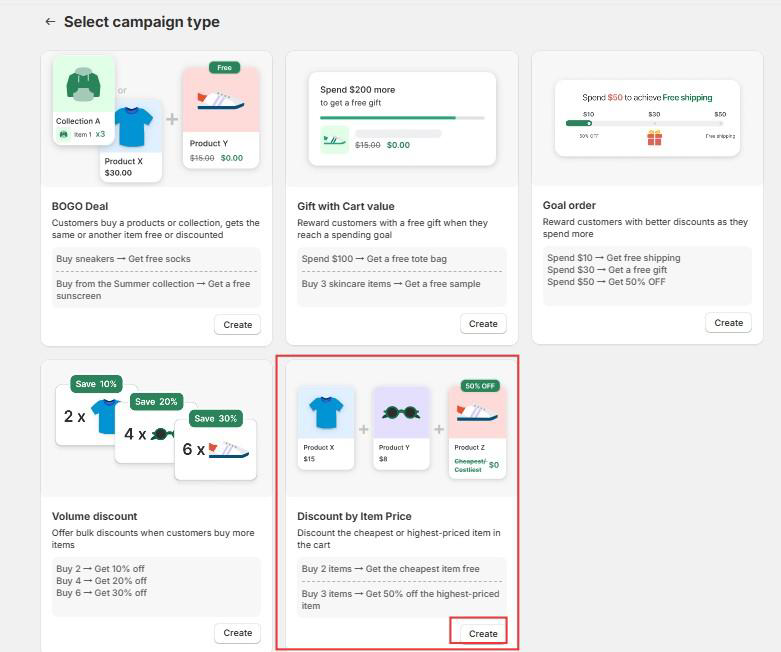
Step 2: Configure Campaign Info
Campaign status
Enable or disable the campaign.
- Active → Campaign runs immediately
- Inactive → Campaign remains saved

Campaign name
Internal campaign name. Customers will not see this.

Example: Spring Sale – Free Gift Over $100
Discount label
Displayed in cart and checkout.

Example: Cheapest Item Discount
Active dates (Optional)
Schedule when the campaign starts and ends.
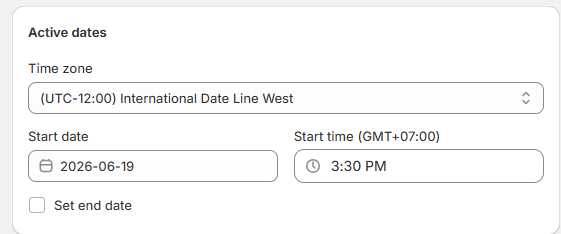
You can configure:
- Time zone
- Start date
- Start time
- End date (optional)
Step 3: Select eligible purchases
Under Campaign rule → Customer buys, choose which products count toward qualification.
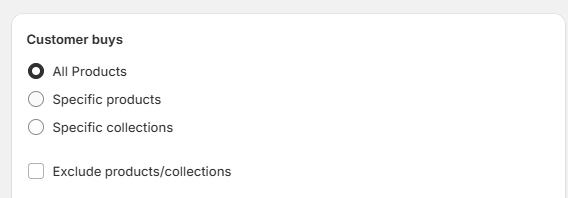
All Products
Every product qualifies.
Example: Buy any 3 products.
Exclude products/collections (Optional)
Remove products from qualification.
Example: Apply to all products except Gift Cards.
Specific products
Only selected products qualify.
Example: Buy selected skincare products.
Specific collections
Only products inside selected collections qualify.
Example: Buy from Summer Collection.
Step 4: Configure purchase requirements
Choose how customers activate the campaign. You can select only one trigger condition per campaign.
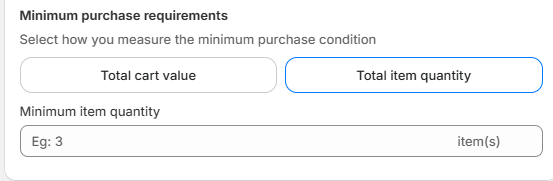
Triggered by the total cart value
Customers qualify after reaching a minimum spend.
Example: Spend $100 → Discount activates
Recommended for:
- Increasing average order value
Triggered by the total item quantity
Customers qualify after purchasing enough items.
Example: Buy 3 items → Discount activates
Recommended for:
- Volume promotions
- Buy more save more campaigns
Step 5: Configure discount rules
Under Customer gets, configure how the discount is applied.
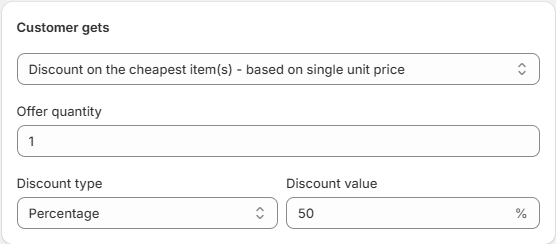
Discount target
Choose which discount the customer will receive.
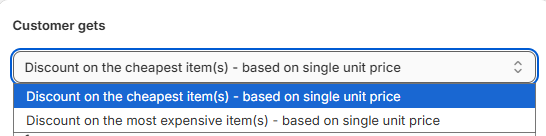
Discount on the cheapest item(s)
The discount applies to products with the lowest unit price.
Example:
Cart:
Product A → $100
Product B → $50
Product C → $20
Reward: 50% OFF the cheapest item
Result: Product C receives the discount.
Discount on the most expensive item(s)
A discount applies to products with the highest unit price.
Example:
Cart:
Product A → $100
Product B → $50
Product C → $20
Reward: 50% OFF the most expensive item
Result: Product A receives the discount.
Offer quantity
Control how many products receive the discount.

Example:
Offer quantity = 1 -> Result: Only one qualifying item is discounted.
Offer quantity = 2 -> Result: Two products receive discounts.
Discount type
Choose how discounts are calculated.
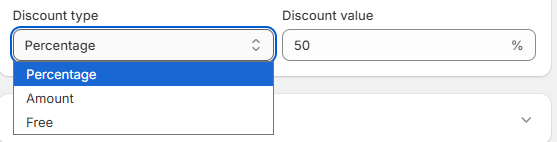
Supported options:
Percentage
Example: 50% OFF
Fixed amount
Example: $20 OFF
Free
Apply a 100% discount.
Step 6: Configure Advanced Settings
Combinations
Choose whether this campaign can be combined with:
- Product discounts
- Order discounts
- Shipping discounts

Adjust based on your promotion strategy.
Customer eligibility
Choose who can access the campaign.
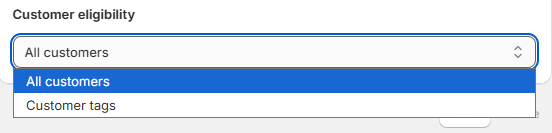
Examples:
- All customers
- Selected customer groups
Step 7: Save and test
Before publishing:
☐ Add qualifying products
☐ Reach purchase requirement
☐ Verify correct item receives discount
☐ Confirm discount amount
☐ Test excluded products
☐ Test discount combinations
Example Campaign Setups
Example 1 — Cheapest Item Half Price
Goal: Increase quantity purchased
Customer buys: All Products
Trigger: Total item quantity = 3
Reward: Discount cheapest item
Discount: 50%
Offer quantity: 1
Result: Buy 3 items → Cheapest item receives 50% OFF
Example 2 — Free Lowest Price Product
Goal: Encourage larger carts
Customer buys: Summer Collection
Trigger: Cart value = $200
Reward: Cheapest item
Discount: Free
Offer quantity: 1
Result: Spend $200 → Lowest priced item becomes free
Example 3 — Discount Multiple Expensive Items
Goal: Promote premium purchases
Customer buys: Selected products
Trigger: Total item quantity = 5
Reward: Most expensive items
Offer quantity: 2
Discount: 20%
Result: Top 2 most expensive qualifying products receive 20% OFF
Troubleshooting
Discount is not applied
Check that:
- Campaign is Active
- Active dates are valid
- Customer reached the purchase requirement
- Eligible products are included
Wrong product receives the discount
Check that:
- Cheapest vs most expensive selection is configured correctly
- Offer quantity is set correctly
- Product prices are configured correctly
Discount applies to excluded products
Check that:
- Excluded products/collections are configured correctly
- Cart only contains intended products
Discount does not combine with other campaigns
Check that:
- Discount combinations are enabled
- Campaign stacking rules are configured correctly
Campaign activates too early or too late
Check that:
- Cart value vs item quantity trigger is selected correctly
- Purchase thresholds match expected values
Need more help?
If you encounter any issues or have questions, feel free to reach out to our support team via [email protected] or via our live chat - we're happy to help!