
The guide for setting up a Gift with Cart Value campaign
Gift with Cart Value (Gift with Purchase) allows you to reward customers after they meet purchase requirements. Customers can receive either free gift products or shipping discounts once the campaign conditions are fulfilled.
This campaign supports:
- Product or collection-based eligibility
- Cart value or item quantity triggers
- Gift rewards or shipping discounts
- Manual gift selection or automatic reward application
- Publishing channels (Online Store / Point of Sale / Both)
Gift With Purchase is currently the only campaign type that supports Publishing Channels selection.
Before you start
Before creating your campaign, make sure:
- Your gift products already exist and are active in Shopify
- Collections are created if you plan to target specific collections
- Gift products have available inventory
- You decide whether customers will choose gifts manually or receive them automatically
- You decide which sales channel the campaign should apply to
Step 1: Open the campaign
Go to Campaigns → click New campaign → select Gift With Purchase.
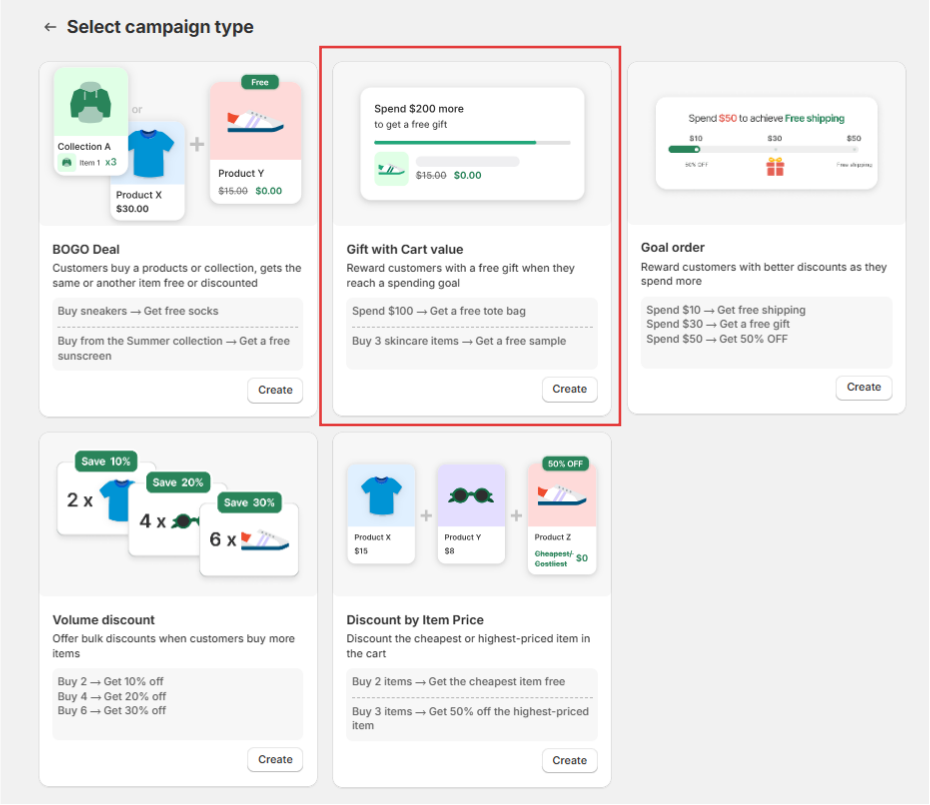
Step 2: Configure Campaign Info
Campaign status
Enable or disable the campaign.

- Active -> Campaign is available
- Inactive -> Campaign is saved but not running
Campaign name
Enter an internal campaign name. Customers will not see this name.

Example:
Spring Sale – Free Gift Over $100
Discount label
Enter the text customers will see in the cart and checkout.

Example: Free Gift Promotion
Publishing Channels
Choose where the campaign applies.
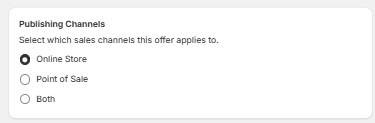
- Online Store: Campaign works only on storefronts.
- Point of Sale: Campaign works only with Shopify POS.
- Both: Campaign works on both channels.
Active dates (Optional)
Schedule when the campaign starts and ends.
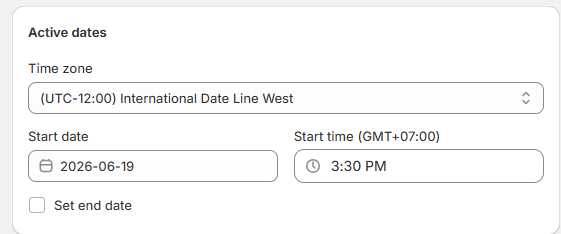
You can configure:
- Time zone
- Start date
- Start time
- End date (optional)
Step 3: Select eligible purchases
Under Campaign rule → Customer purchases, choose which products qualify.
All Products

All products contribute toward campaign qualification.
**Exclude products/collections (Optional): **Exclude selected products or collections from eligibility.
Example: Apply storewide except Gift Cards.
Specific collections

Only products inside selected collections count.
Example:
Only products in "Testing product" collection qualify.
Tip: If you want to target specific products, create a collection and select them.
Step 4: Configure Minimum Purchase Requirements
Choose how customers qualify.
Total cart value
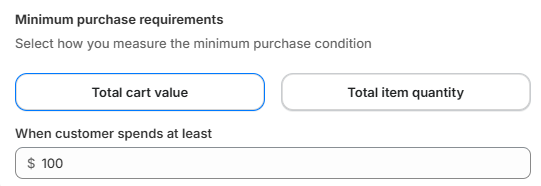
Customers qualify after reaching a minimum order value.
Example:
Spend at least $100.
Total item quantity
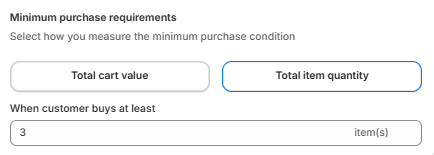
Customers qualify after purchasing a required number of items.
Example:
Buy at least 3 items.
Step 5: Configure customer rewards
Under Customer gets, choose the reward.
Option 1: Gift
Offer one or multiple gift products.
Configure:
- Gift products
- Quantity of gifts
- Discount amount
- Discount percentage
Number of gifts customers receive
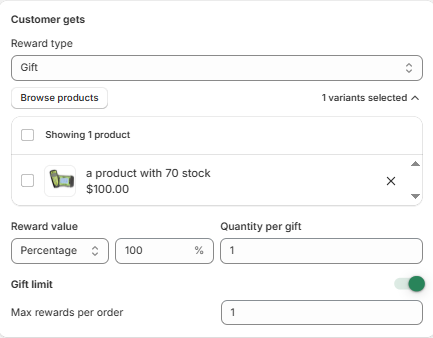
You can offer multiple gifts, but limit how many customers can claim.
Example:
Available gifts:
- Tote Bag
- Mug
- Notebook
Maximum gifts allowed: 1
Result:
Customers choose only one reward from Tote Bag, Mug, or Notebook.
Option 2: Shipping discount
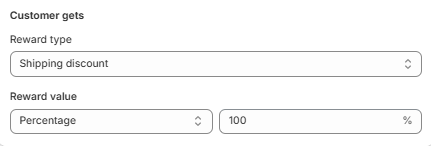
Reward customers with discounted shipping.
Configure:
- Discount type
- Discount value
Example:
100% shipping discount after qualification.
Step 6: Configure reward delivery
Choose how customers receive the reward.
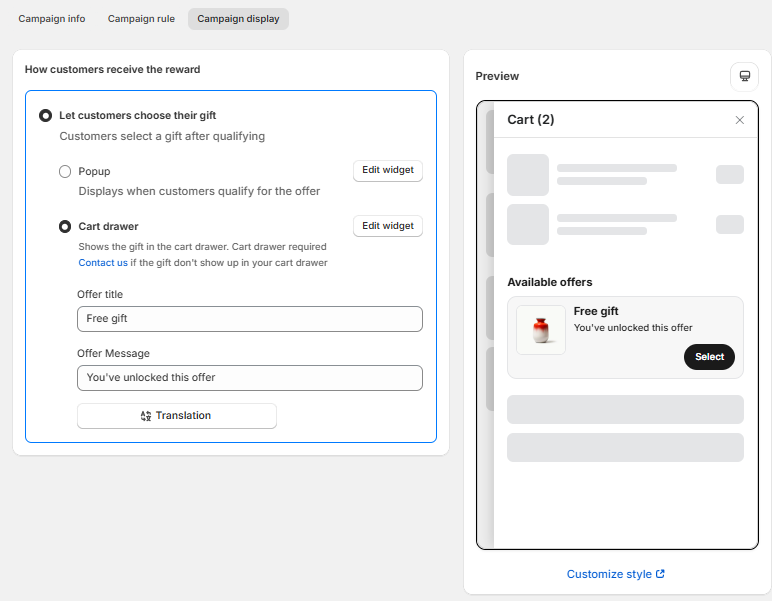
Let customers choose their gift
Customers select the reward after qualifying.
Display methods:
Popup
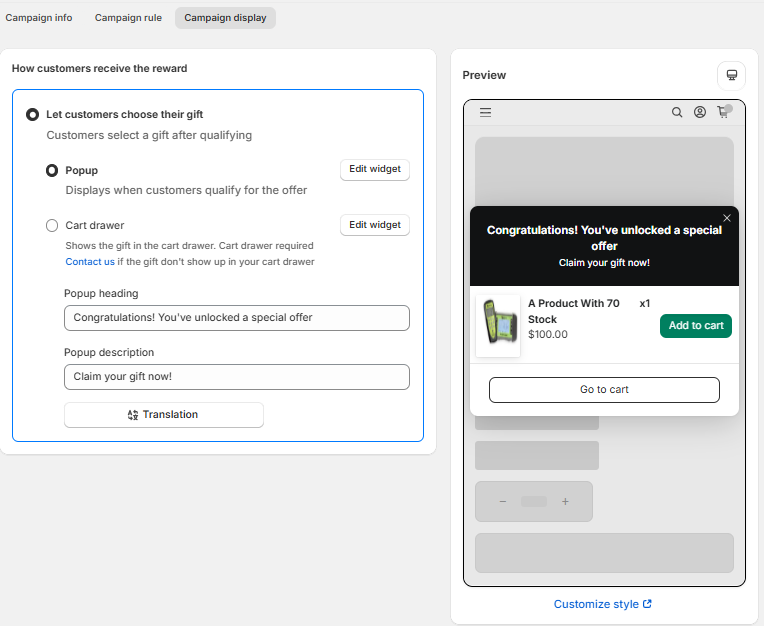
Reward appears in a pop-up.
Configure:
- Popup heading
- Popup description
Example:
Heading: Congratulations! You've unlocked a special offer
Description: Claim your gift now!
Cart drawer
Reward appears directly inside the cart drawer.
Step 7: Advanced Settings (Optional)
Combinations
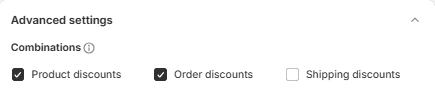
Choose whether this campaign can be combined with:
- Product discounts
- Order discounts
- Shipping discounts
Adjust based on your promotion strategy.
Discount usage limitation
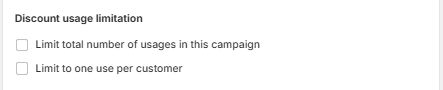
Optional restrictions:
- Limit total campaign usage
- Limit one use per customer
Customer eligibility
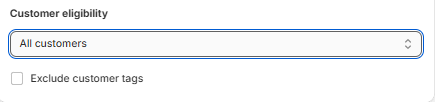
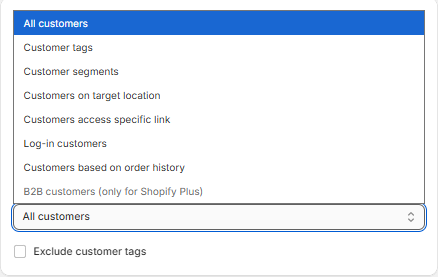
Choose who can access the campaign.
Examples:
- All customers
- Specific customer groups
You can also exclude customer tags.
Step 8: Save and publish
Click Save to activate the campaign.
Test the campaign before publishing.
Checklist:
☐ Add qualifying products
☐ Reach threshold
☐ Confirm reward appears
☐ Verify discount applies
☐ Remove qualifying products and confirm reward disappears
☐ Test storefront or POS
Example Campaign Setups
Example 1 — Free Gift by Cart Value
Goal: Increase the average order value.
Configuration:
Customer purchases: All Products
Minimum requirement: Total cart value = $100
Reward: Gift
Gift product: Free Tote Bag
Gift quantity: 1
Reward delivery: Popup
Result: Customers spending $100 unlock a free tote bag.
Example 2 — Collection-Based Gift
Goal: Promote a specific collection.
Configuration:
Customer purchases: Summer Collection
Minimum requirement: 3 items
Reward: Gift
Available gifts:
- Beach Bag
- Water Bottle
Customer receives: 1 gift
Result: Customers purchasing 3 Summer Collection items can choose one reward.
Example 3 — Free Shipping Campaign
Goal: Encourage larger orders.
Configuration:
Customer purchases: All Products
Minimum requirement: Cart value = $150
Reward: Shipping discount
Discount: 100%
Result: Customers receive free shipping after spending $150.
Troubleshooting
The reward does not appear
If customers meet the requirements but do not receive the reward:
Check that:
- The campaign status is set to Active
- The campaign is within the configured active dates
- The products in cart belong to the selected eligible products/collections
- The customer has reached the required cart value or item quantity
- The gift product is available and has inventory
- The campaign is published to the correct sales channel (Online Store / POS)
Tip: Try creating a test order to confirm the qualification conditions are working as expected.
The wrong products are triggering the campaign
If customers qualify unexpectedly:
Check that:
- The correct Customer purchases option is selected
- Excluded products or collections are configured correctly
- Products are assigned to the intended collections
Tip: If you want to target individual products, place them in a dedicated collection and use Specific collections.
Customers qualify but cannot claim the reward
If the reward appears but customers cannot select or receive it:
Check that:
- The correct reward type is selected
- Gift products are assigned to the campaign
- The number of gifts customers receive is configured correctly
- Gift display is set to Popup or Cart drawer as intended
Shipping discount is not applied
If customers qualify but shipping remains unchanged:
Check that:
- Reward type is set to Shipping discount
- The discount value is configured correctly
- Shipping discount combinations are not restricted
- The checkout shipping method supports discount application
The campaign does not work together with other discounts
If another discount overrides this campaign:
Check that:
- Discount Combinations are enabled
- Product, Order, or Shipping discounts are allowed together based on your setup
Note: Shopify discount behavior may affect how multiple promotions are applied simultaneously.
The campaign works in the Online Store but not in POS (or vice versa)
If the campaign appears only in one channel:
Check that:
- The correct Publishing Channels option is selected
- The campaign is enabled for Online Store, Point of Sale, or Both
Still need help?
If the issue persists after checking the settings above, please contact our support team and include:
- Campaign configuration screenshots
- Storefront recording (if applicable)
- Expected behavior vs actual behavior
This will help us investigate faster.
Need more help?
If you encounter any issues or have questions, feel free to reach out to our support team via [email protected] or via our live chat - we're happy to help!