
How to set up the Countdown Timer in the Announcement Bar
Introduction
Want to give your customers a gentle nudge to complete their purchase? The Countdown Timer feature in Snap Cart Drawer does exactly that — it shows a live ticking timer right inside the cart, letting shoppers know their items are reserved for a limited time.
It's a simple but effective way to reduce cart abandonment and encourage faster checkouts. Let's get it set up!
Steps to Set Up a Countdown Timer
Step 1: Open Snap Cart Drawer
From your Shopify Admin, go to Apps > Snap Cart Drawer, then click Edit on the cart you want to configure.

Step 2: Enable the Announcement Bar
In the cart editor, select the Header section on the left-hand menu. Find Announcement Bar and toggle it ON.
Step 3: Select the "Cart Reservation Timer" message type
Once the Announcement Bar is enabled, click on it to open its settings. Under Message type, select Cart Reservation Timer.
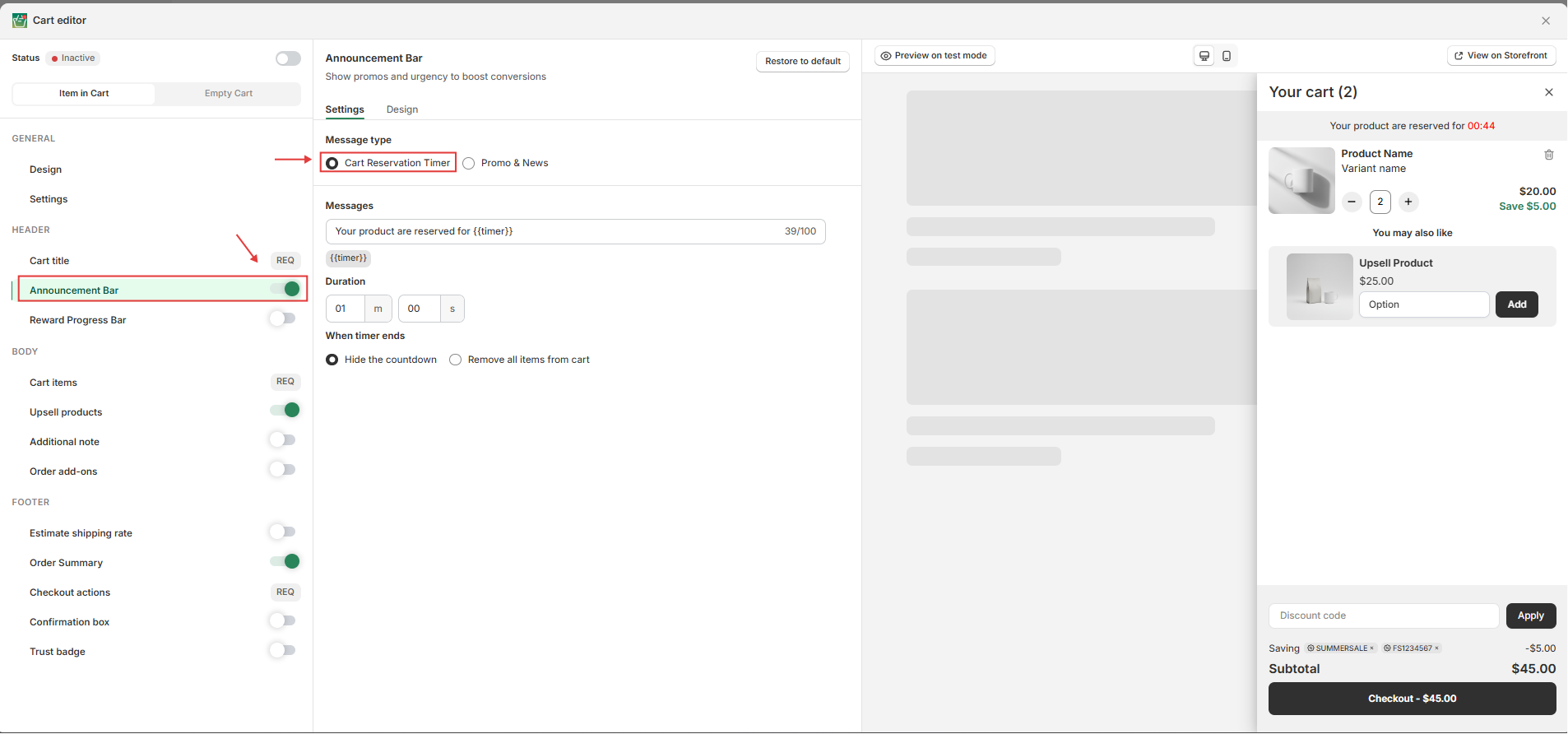
Step 4: Configure the timer settings
Now set up how the timer looks and behaves:
- Messages — Write the text shown alongside the timer. Use
{{timer}}in your message to display the live countdown (e.g., "Your product are reserved for {{timer}}"). - Duration — Set how long the timer counts down (e.g.,
10minutes00seconds). - When timer ends — Choose what happens when time runs out:
- Hide the countdown — The timer bar simply disappears.
- Remove all items from cart — The cart is automatically cleared.
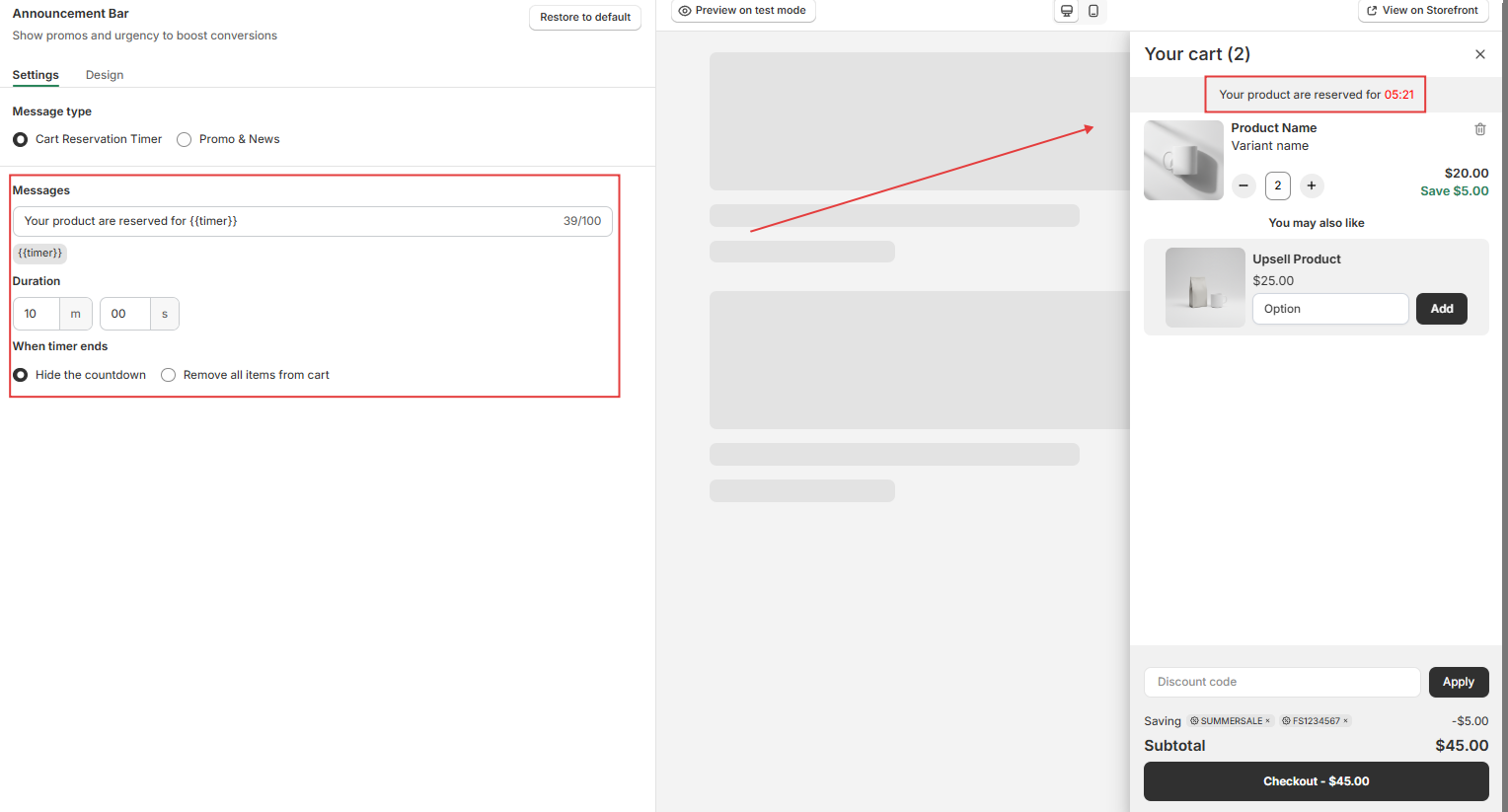
Step 5: Customize the design (Optional)
Head to the Design tab to adjust the look to match your store's style:
- Background color — The color of the announcement bar.
- Timer color — Make the countdown numbers stand out (try a bold color to create urgency).
- Text size & Text color — Adjust for readability.
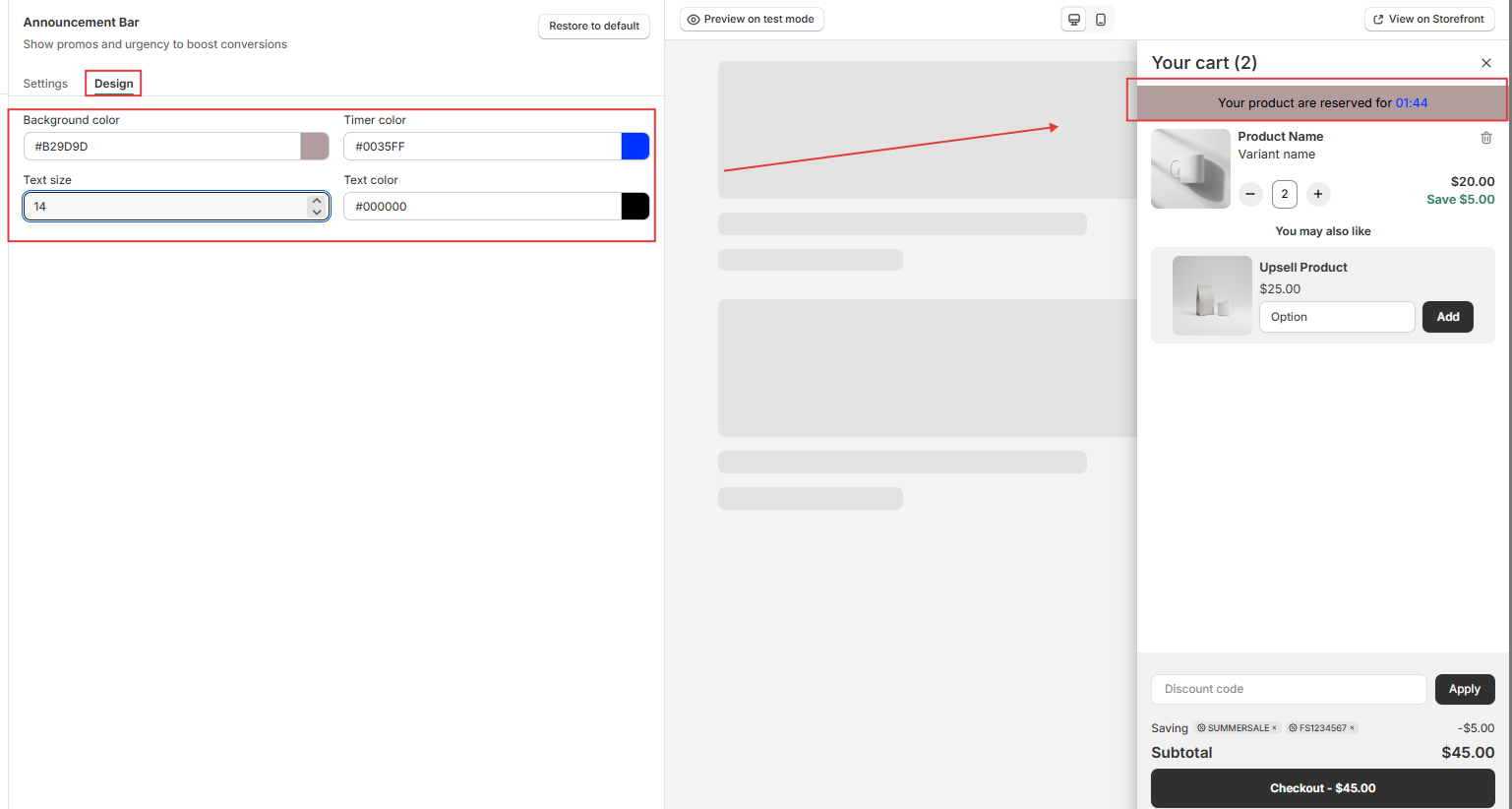
Step 6: Save your changes
Once everything looks good, hit Save. The countdown timer will now appear live in your cart drawer for your customers!
📝 Good to know
The timer resets each time a customer opens a new browser session. It's designed to create urgency within a single shopping visit — not to permanently hold inventory.
Help & Support
Have questions or running into issues? Reach out to us at [email protected] or via the live chat in the app — we're happy to help!