
How to Display Volume Discount on Checkout Page
The Volume Discount on Checkout Page feature allows customers to easily view and apply available discount tiers right at checkout, creating a smoother shopping experience and boosting upsell potential. However, this feature is exclusively available for Shopify Plus stores. Here is how you can set up this feature in BOGO.
Step 1: Enable Checkout Display
In your Volume Discount Campaign → Promotion display tab, please tick on Enable to show on checkout page. A Checkout page section will appear next to Product page in the preview.
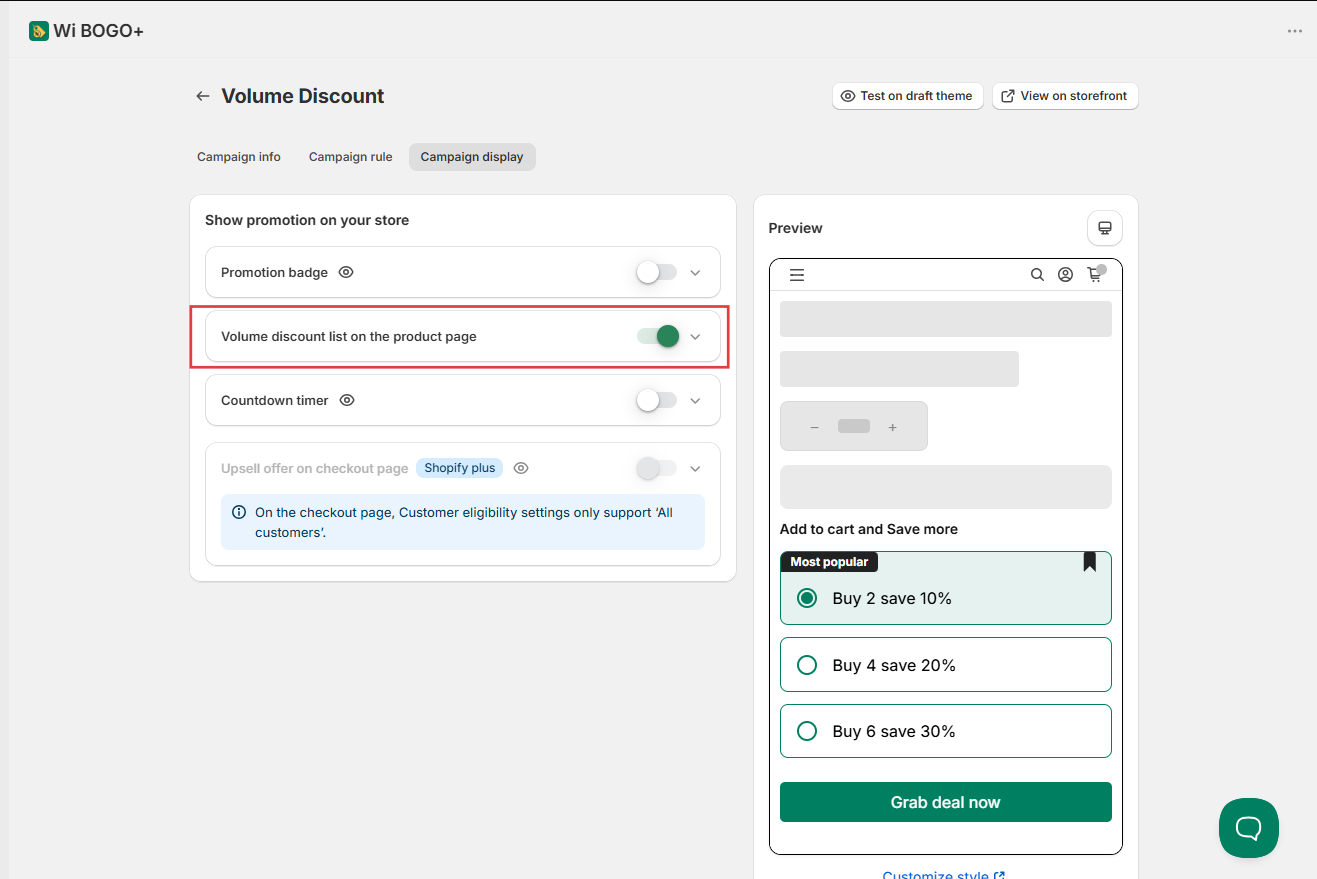
Step 2: Add Volume Discount Block in Theme Editor
After saving the campaign, a popup will appear — click Open checkout editor to go to the theme editor.
- In the open Theme editor, select the Checkout page from the top dropdown.
- Go to Apps → Volume Discount.
- Click Add block, then click Save.

Step 3: Test on Checkout Page
You can test this feature by adding a product with a volume discount to the cart then proceed to the Checkout page.
Here, you’ll see a “View Product Offer” button displayed below the discount information. The list will include tiers whose minimum quantity is greater than (or equal to, if no discount has been applied yet) the current product quantity in the cart, and less than or equal to the product’s in-stock quantity.

Please note: When you select a tier (for example, Buy 2), the product quantity will automatically update to that tier’s minimum quantity, and the tier will be hidden. Once the highest discount tier has been applied, the Volume Discount list will no longer be displayed.
Optional: Customize Volume Discount List Text
If you’d like to customize the display text or style on the checkout page:
- Step 1: Go to Settings → Volume Discount → Checkout page tab.

- Step 2: Click Customize to open the Volume settings page.
Here, you can adjust the display text displayed on block, then click Save. All the changes will be displayed in the preview.
Need more help?
If you encounter any issues or have questions, feel free to reach out to our support team via [email protected] or via our live chat - we're happy to help!