
How to set up Preorder button on listing page?
Showing the Preorder button on your collection, homepage, or search page helps customers discover pre-order items more easily. This can improve visibility and encourage quicker purchasing decisions.
How to set it up?
Step 1: Open Display Settings
From your Shopify admin, go to the Snap PreOrder app.
In the sidebar, click on Settings.
Inside Settings, click on the "Display settings" tab at the top.
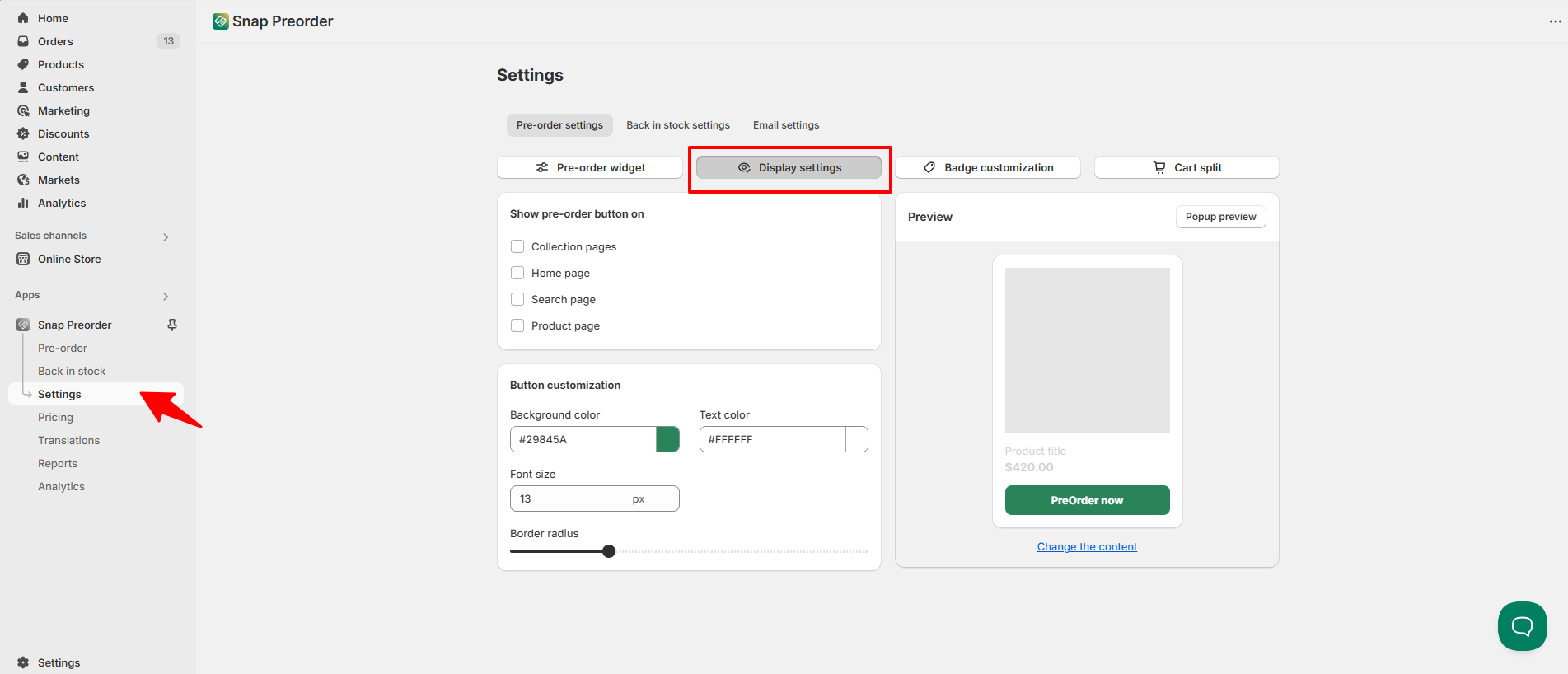
Step 2: Enable listing page options
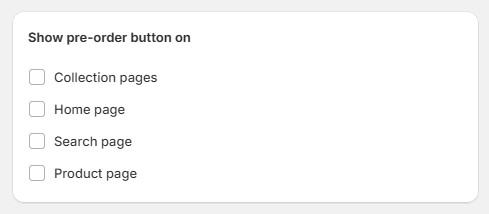
In the section “Show pre-order button on”, tick the checkboxes based on where you want the preorder button to appear:
- Collection pages
- Home page
- Search page
- Product page
🔎 You can select one or multiple options depending on your store layout.
Step 3: Customize the button (optional)
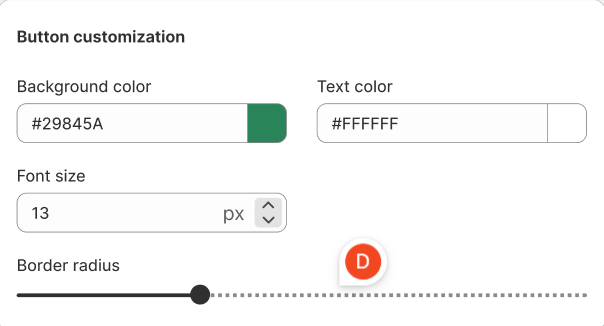
Below the checkboxes, you can customize the look of your Preorder button:
- Background color
- Text color
- Font size
- Border radius
As you customize, you’ll see a live preview on the right-hand side of the screen.
Step 4: Save changes
Once you're done, the Preorder button will start appearing on the pages you selected whenever a product is marked as Preorder.
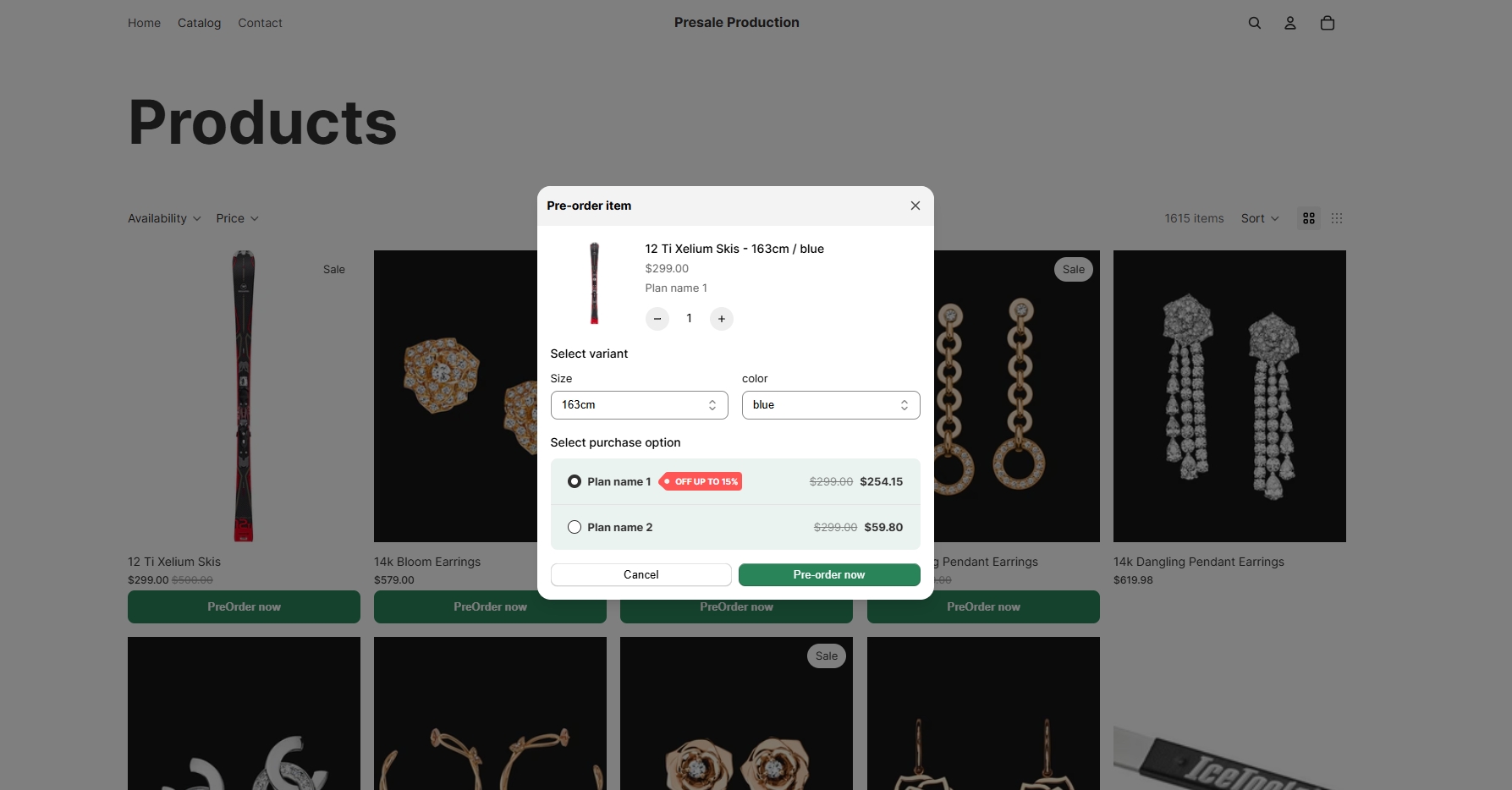
How will it display on the storefront?
- Button on listing page:
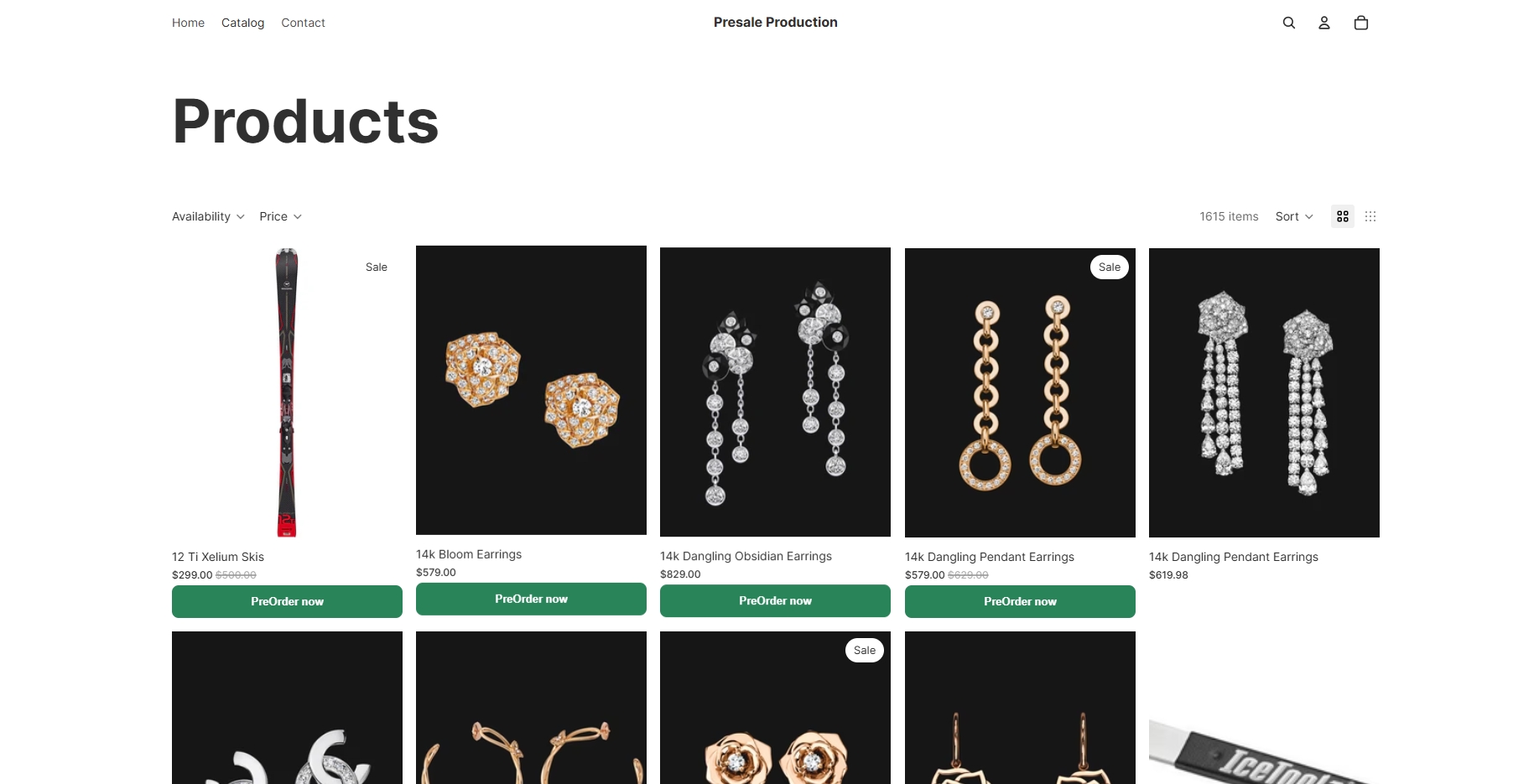
- A pop-up will show after clicking the button:
Need more help?
If you encounter any issues or have questions, feel free to reach out to our support team via [email protected] or via our live chat - we're happy to help!