
How to use Order add-ons for Shipping Protection and Gift Wrapping
Introduction
Want to offer customers a little something extra before they check out? With the Order Add-ons feature in Snap Cart Drawer, you can display optional services or products right inside the cart — like shipping protection, gift wrapping, or a complementary product from your store.
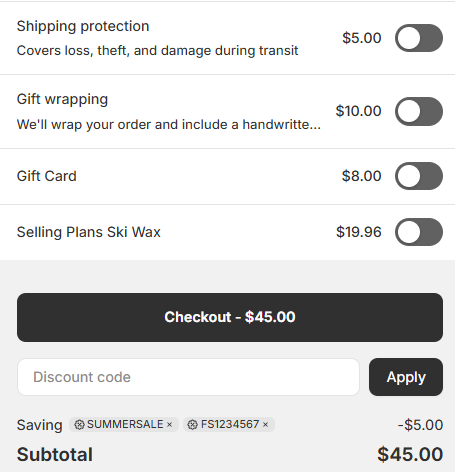
It's a great way to add value for your customers while increasing your average order value — all without disrupting the shopping experience. Let's get it set up!
Steps to Set Up Order Add-ons
Step 1: Open Snap Cart Drawer
From your Shopify Admin, go to Apps > Snap Cart Drawer, then click Edit on the cart you want to configure.

Step 2: Enable the Order Add-ons feature
In the cart editor, find Order add-ons in the left-hand menu under the Body section and toggle it ON.

Step 3: Configure your add-ons
Once enabled, the Order add-ons panel will appear on the right side with three built-in add-on types ready to configure. Toggle ON the ones you'd like to offer:
1. Shipping Protection Let customers opt in to protect their order against loss, theft, or damage during delivery.
- Title — Name shown to customers (e.g., "Shipping protection")
- Description — A short explanation (e.g., "Covers loss, theft, and damage during transit")
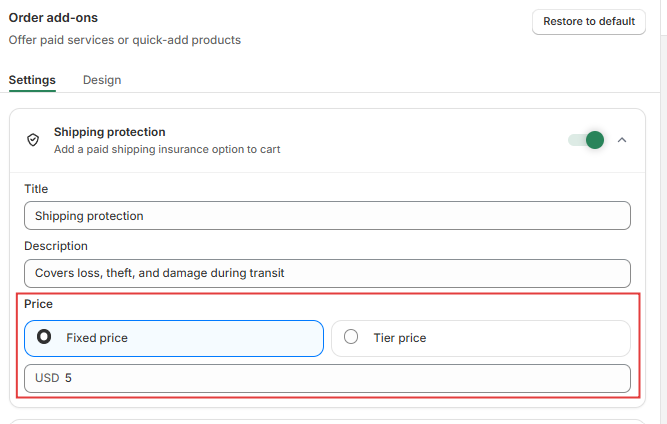
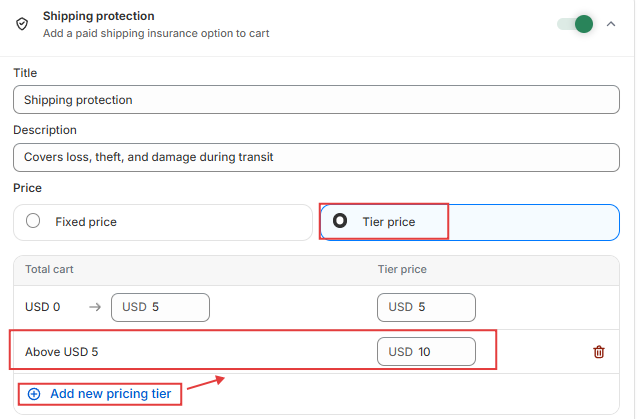
- Price — Choose how you'd like to charge:
-
Fixed price — One flat fee
regardless of cart value (e.g., $5)
-
Tier price — Different prices based on cart total. Click + Add new pricing tier to set up multiple price ranges.
-
(Insert screenshot: Shipping protection settings — Fixed price) (Insert screenshot: Shipping protection settings — Tier price)
2. Gift Wrapping Give customers the option to have their order gift-wrapped before shipping.
- Title — e.g., "Gift wrapping"
- Description — e.g., "We'll wrap your order and include a handwritten note"
- Fixed Price — Set a flat fee for this service (e.g., $10)

3. Product Add-on: Suggest a specific product from your store that customers can add to their cart with one click.
- Click + Select product to choose up to 3 products from your catalog.

Step 4: Customize the design (Optional)
Click the Design tab to adjust the appearance to match your store's branding:
- Title size & Title color
- Subtitle size & Subtitle color
Step 5: Save your changes
Once everything looks good, hit Save. Your add-ons will now appear live inside the cart drawer, ready for customers to select before checkout.
📝 Good to know
When you add Shipping Protection or Gift Wrapping, Snap Cart automatically creates them as real products in your Shopify Admin with the status set to Active — which means they may appear on your storefront.
To prevent this, go to Shopify Admin > Products, find the product (e.g., "Shipping Protection" or "Gift Wrapping"), and change its status to Unlisted. This way, the product is only accessible via a direct link and won't show up on your store for regular shoppers.