
Maximizing Revenue with Upsell feature
Would you like to encourage your customers to add more items to their orders right before checkout?
The Upsell Products feature is a fantastic way to boost your store’s Average Order Value (AOV). It displays smart product recommendations — like accessories, add-ons, or gift wrapping — directly inside your cart drawer when a customer is about to complete their purchase.
With Snap Cart Drawer, you can set this up in minutes without any technical skills. Here is a simple step-by-step guide to get you started!
Step 1: Enable the Upsell Products Widget
- From your Shopify Admin, go to Apps → Snap Cart Drawer.
- Click Edit on your active cart card to open the Cart Editor.
- In the left-hand sidebar under the BODY section, toggle the switch for Upsell products to On.
- Click on Upsell products to open its settings panel.

Step 2: Choose Your Display Layout
You can choose how you want your recommended products to look inside the cart drawer. Switch to the Settings tab and select one of the following layouts under Template:
- Single Card: Shows one featured product at a time. This is perfect if you want to focus customer attention on one specific item.
- Multiple Cards: Shows up to three products side-by-side in a horizontal row.
- Product List: Displays products stacked vertically inside the cart, which is great for showing multiple options cleanly.
- Expanded View: Slides out a dedicated recommendation panel from the side (left or right) of your cart drawer, offering a premium and spacious layout.
Let's look at how the different templates look on your store:
Multiple Cards Layout

Product List Layout

Expanded View Layout

Step 3: Configure Your Product Recommendations
Now, choose how the app decides which products to recommend to your shoppers under the Upsell products section:
Option A: Automatically (Smart Recommendations)
If you select Automatically, the app will use Shopify’s built-in recommendation algorithms. You can select:
- Related: Suggests products similar to what is currently in the cart.
- Complementary: Suggests products that go well together. (Note: Complementary products can be configured easily using Shopify's native Search & Discovery app).

Option B: Manually (Custom Rules)
Choose Manually to build specific rules for when and what to recommend. You can click + Add rule to create custom scenarios:
- Show recommendations when:
- Always (any items in cart): Show the recommendations to all shoppers.
- Cart has specific products: Recommend only when a particular product is in the cart.
- Cart has products from a collection: Recommend only when the cart contains items from a selected collection.
-
Recommend these products: Click Browse or use the search bar to select the specific products you want to offer for this rule.
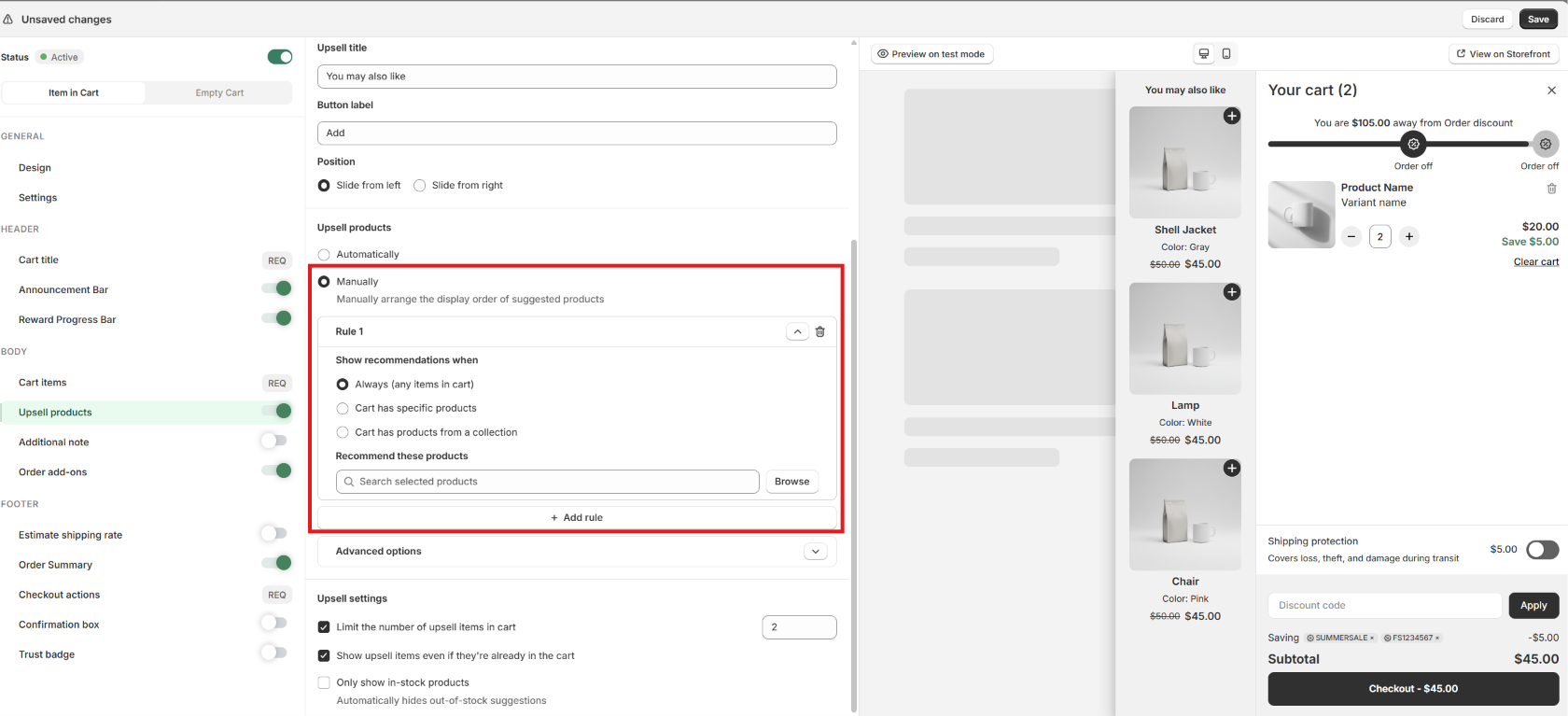
Configure manual rules
- Advanced Options: Expand this section to add specific cart conditions:
- Cart value: Only show the upsell if the total cart value matches your condition (e.g., Equal to, Greater than, or Less than a specific amount).
- Cart quantity: Only show the upsell if the number of items in the cart matches your condition (e.g., Equal to, Greater than a specific quantity).

Step 4: Customize the Style to Match Your Brand
Switch to the Design tab at the top of the settings panel. Here, you can customize the colors and fonts to match your website's branding:
- Customize the Title size, Title color, and the Product card background.
- Adjust the Product name color, Price color, and Card border radius (to make the corners rounder or sharper).
- Change the Button background and Text color to make your call-to-action pop.

Step 5: Save and Preview
Once you are happy with your settings:
- Click Save in the top-right corner to save your changes.
- Click Preview on test mode at the top of the editor to test and see exactly how the recommendations look and behave before your customers see them.
Need More Help?
If you encounter any issues or have questions, feel free to reach out to our support team via [email protected] or via our live chat - we're happy to help!